
Local browser tool · Resize
Resize Image Online
To resize an image to exact pixel dimensions, type the width and height the form or platform demands, keep the ratio lock on unless the size is strict, and let this page resample the picture inside your browser. Nothing uploads, the result previews at full clarity before you save, and the output is a separate copy so your original stays untouched — the usual finish for a resized photo is a 1,500 px long edge for blogs or whatever exact box a portal specifies.
Set the exact pixel size a form or platform wants
Type a width, a height, or both, and the image is resampled locally to match. Suitable for resize tasks on JPG, PNG, and WebP files; the export is always a new copy.
Click a thumbnail to preview it before you start.
These are the settings you last used for this tool. They stay in this browser and are never sent anywhere.
Picking one fills both boxes with that platform's exact size, releases the aspect lock, and crops the overflow instead of stretching it — switch the mode below if you would rather keep every pixel.
Estimated output —
Your files are read locally. Nothing is uploaded.
Your results
Pick a picture in the list to look at that file instead.
Full size
Actual pixels, straight from this browser — scroll to check edges and fine detail, then close.
Free to use. Local limits: up to 30 files, 100 MB per file, and 250 MB per batch, processed entirely in this browser. Nothing is uploaded; what stays on your device afterwards is the settings you last used and, after a run, the picture this page made so a next step can open it without choosing the file again. Start over deletes that picture.
Resize at a glance
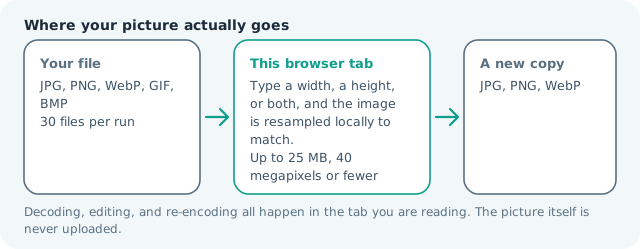
| Files it opens | JPG, PNG, WebP, GIF, BMP |
|---|---|
| Files you get back | JPG, PNG, WebP |
| Camera data (EXIF) | Not copied — this browser writes a fresh picture from its pixels, so GPS, timestamps and camera tags stay in the file you started with |
| Where the work happens | In this browser tab — the picture itself is never uploaded |
| Largest file | 100 MB, 40 megapixels or fewer |
| Largest batch | 30 files per run |
| Account, price, watermark | No sign-up, no charge, nothing stamped on your export |
When this helps
- Application portals that require an exact pixel photo or ID scan
- Profile pictures and thumbnails that need square dimensions
- Downscaling 12-megapixel camera shots for a blog post
- Preparing 1920 or 1080-wide backgrounds for presentations
Measured on this page: a 3,992 × 2,992 photo of 3.55 MB resized to 1,920 px wide came back 1,920 × 1,439 and 548 KB, which is 85% lighter in about 1.5 seconds. With the ratio locked and a 200 px box requested, an 820 × 1,024 portrait landed at 267 × 200 and 13 KB instead of stretching to fit. Enlarging that same portrait to 1,640 px wide grew the file from 172 KB to 311 KB and added no detail whatsoever.
Detailed guidance
Down is easy — up is where care pays off
Shrinking a picture discards pixels and stays sharp, so resizing 12-megapixel camera shots down to 1,500-2,000 px is the most common safe win: the file gets dramatically lighter and nothing visible is lost on screen. Enlarging is different, because no resampler can invent detail that was never captured; anything past roughly 1.5x the original starts looking soft. If a destination demands more pixels than you have, submit the largest clean size you can produce and let the receiving system scale down.
Aspect ratio: the difference between neat and distorted
The ratio lock keeps width and height moving together so faces stay proportional. When a platform insists on a box that does not match your photo — square from a landscape, for example — choose deliberately: Fit pads the empty space with a background color and loses no pixels, Fill crops the overflow evenly and looks native. Both are honest answers; stretching silently is neither.
After resizing, check two numbers
Open the result and confirm the dimensions match the requirement exactly, then check the byte count — some forms limit both. Many portals for applications, visas, and exams state sizes like 200x200 px under 2 MB; resize here to the exact box, then compress to the byte cap if needed. Keeping one resized-plus-compressed workflow record makes renewing the same photos next season trivial.
Exact-pixel jobs this handles well
Exam, visa, and civil-service portals state a box and a byte cap together, commonly something like 200×200 px under 2 MB, and they reject anything else without telling you why. Website heroes usually ask for 1920 wide with a sensible height, while email headers cap out nearer 600-1200 px because their layout tables do not scale. Slides want the aspect of the projector, most often 16:9. Match each requirement exactly here so the destination never resamples you badly. A practical habit: resize to the largest size any destination needs, then keep the original. That gives you a clean master, and each smaller variant comes from the master rather than from a previous export.
What resampling cannot fix
Difference shows at edges. Photographs shrink gracefully because the eye forgives averaging; screenshots, text, and logos do not, because resampling smears straight lines and small glyph stems. For those, resize from the highest-resolution capture you have and keep the target at or below native size. When shrinking a very large image, going down in two stages of roughly half each usually looks crisper than one aggressive pass. If the source ratio does not match the box, crop first rather than stretching, since stretch is the one mistake every viewer notices instantly. And once detail is gone it cannot return — an under-sized source needs an AI upscaler or acceptance, not a resize.
Resize Image Online questions
How do I resize an image to exact pixels?
Type both the width and the height the destination asks for, then choose what happens when the source ratio disagrees: fill crops the overflow evenly, fit pads the gap with a colour you pick, and stretch distorts the picture. The first two are almost always the better answer.
What does the keep-aspect-ratio lock actually do?
It calculates the second number from the original proportions, which is the difference between a photo that still looks like itself and one where faces go wide. Unlock it only when a form states an exact width and height, and then pick a fit mode rather than accepting a stretch.
Can I make a small photo bigger?
Yes, but the added pixels are interpolated rather than recovered, so enlarging past about 1.5 times the original usually turns soft. Start from the largest file you own and resize downwards where the destination allows it, since shrinking keeps detail while enlarging only estimates it.
Is resizing the same as compressing?
No. Resizing changes the pixel count, which lowers file weight as a side effect, while compressing keeps every pixel and re-encodes them more tightly. If a portal caps dimensions, resize; if it caps kilobytes, compress. Portals that state both want the resize first and the compression second.
How do I control which part of the photo survives?
The framing sliders move the picture inside the box once you choose fill, so you decide what is discarded instead of accepting a centre cut. Drag them until the subject sits comfortably inside, because a face near an edge is the first thing a default crop loses.