
Local browser tool · Image Metadata Viewer
Image Metadata Viewer
Use this image metadata viewer to check the file facts a browser can read consistently: filename, byte size, MIME type, decoded dimensions, aspect ratio, and local timestamp. Add one image or a batch and ImageMunch writes a plain-text report for each file without uploading or rewriting it. The page is deliberately honest about scope: browser APIs do not expose every private EXIF and GPS field consistently, so this is a practical file-details check rather than a forensic metadata dump.
Check the image facts before you hand it over
Read dimensions, bytes, format, ratio, and browser-visible timestamps as a downloadable report. Suitable for image metadata viewer tasks on JPG, PNG, WebP, GIF, and BMP files; the export is always a new copy.
Click a thumbnail to preview it before you start.
These are the settings you last used for this tool. They stay in this browser and are never sent anywhere.
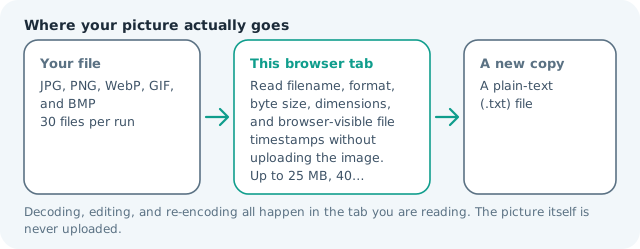
The result is a plain-text report you can copy or download. The image itself stays in this browser tab.
Output formatPlain text (.txt)
Your files are read locally. Nothing is uploaded.
Your results
Pick a picture in the list to look at that file instead.
Full size
Actual pixels, straight from this browser — scroll to check edges and fine detail, then close.
Free to use. Local limits: up to 30 files, 100 MB per file, and 250 MB per batch, processed entirely in this browser. Nothing is uploaded; what stays on your device afterwards is the settings you last used and, after a run, the picture this page made so a next step can open it without choosing the file again. Start over deletes that picture.
Image Metadata Viewer at a glance
| Files it opens | JPG, PNG, WebP, GIF, and BMP |
|---|---|
| Files you get back | A plain-text (.txt) file |
| Where the work happens | In this browser tab — the picture itself is never uploaded |
| Largest file | 100 MB, 40 megapixels or fewer |
| Largest batch | 30 files per run |
| Account, price, watermark | No sign-up, no charge, nothing stamped on your export |
When this helps
- Checking dimensions before a marketplace upload
- Finding unexpectedly large files in a photo folder
- Confirming the real MIME type and extension
- Auditing a batch before sharing it with a client
A result can show a 4.2 MB JPEG, 4,032 × 3,024 pixels, an image/jpeg MIME type, and the local file modification time. Those facts are enough to catch most upload and sizing mistakes before a file travels.
Detailed guidance
What Image metadata viewer is for
Before an image goes into a marketplace, CMS, document, or client handoff, a few file facts answer more questions than a thumbnail does. Dimensions reveal whether a platform will crop it, bytes reveal why a page is slow, and the MIME type can expose a misleading extension. A local viewer is useful because these checks do not need a server to inspect the picture. A browser redraws pixels reliably; it cannot guess what a picture was meant to do. So the control below stays narrow, and the file it hands back is named for the job it did.
What happens in this browser tab
The browser reads the File object for its name, size, type, and timestamp, then decodes the image to obtain the actual rendered width and height. The report also calculates the aspect ratio and identifies the decoded format where the browser provides it. It does not change the file, and the plain-text report contains facts rather than a copy of the image. Nothing waits in a server queue, and the file you chose is never rewritten: you get a new copy with its own download link.
Limits that are part of the tool
The viewer accepts the common still formats listed on the page and follows the 100 MB per-file, 40-megapixel, and 30-file batch ceilings. Some formats carry rich application metadata that standard browser APIs do not expose. That limitation is intentional: a report that quietly omits GPS should not be presented as a complete privacy audit. A decoded canvas costs several times its disk size in memory, which is why a slow phone should work in smaller batches or from a smaller source.
How to check the result before publishing it
Compare the extension, MIME type, and dimensions. If a file named .jpg is reported as another type, re-export it before uploading. For a form, compare both pixel dimensions and file size against its instructions. For a web page, look for oversized originals that should go through resize and compress before publishing. Judge the download in the application that will receive it rather than in the preview here, and keep the original until you have.
Other jobs this page does
Checking image size, viewing JPG details, and confirming dimensions all end in the same report. The clean-copy page is the next step when inspection shows that a shareable file should be re-encoded without common side data.
When another tool is the honest choice
This page is not an EXIF editor, GPS map, camera inventory, or evidence-grade forensic parser. It is a stable browser-side file and pixel inspector. Use a specialised desktop metadata tool when you need every proprietary tag, a signed audit trail, or guaranteed removal across unusual container formats.
Image Metadata Viewer questions
What details does the image metadata viewer show?
It reports the filename, byte size, MIME type, decoded width and height, aspect ratio, and the file timestamp available to the browser. These details catch most upload and sizing mistakes quickly.
Does it show GPS location and camera model?
Not as a complete promise. EXIF support differs by browser and image format, so the page focuses on stable file and pixel facts. Use the metadata remover when the goal is to create a clean share copy.
Does viewing metadata change my image?
No. The image is read and decoded only long enough to measure it. The file on your device is not overwritten, re-encoded, or moved by the viewer.
Can I check a folder of images?
Select multiple files and each receives its own report. Download the reports separately or as a single ZIP so the audit can travel with the folder without copying the photos anywhere.