
Local browser tool · Convert
Convert Image Online
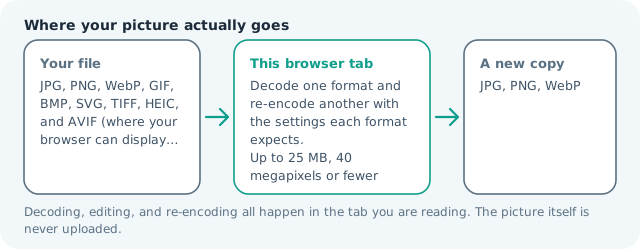
Converting an image format means decoding the picture your file uses and re-encoding it with the rules of another one — and this page does both inside your browser, so no file is ever uploaded. Choose JPG for universal compatibility, PNG when transparency must survive, or WebP for the smallest photos, drop your image in, and download the new copy in seconds with the quality settings you control.
Change the image format you are stuck with
Decode one format and re-encode another with the settings each format expects. Suitable for convert tasks on JPG, PNG, WebP, GIF, BMP, SVG, TIFF, HEIC, and AVIF (where your browser can display it) files; the export is always a new copy.
Click a thumbnail to preview it before you start.
These are the settings you last used for this tool. They stay in this browser and are never sent anywhere.
Pick the format every app accepts — the picture itself stays untouched.
Estimated output —
Your files are read locally. Nothing is uploaded.
Your results
Pick a picture in the list to look at that file instead.
Full size
Actual pixels, straight from this browser — scroll to check edges and fine detail, then close.
Free to use. Local limits: up to 30 files, 100 MB per file, and 250 MB per batch, processed entirely in this browser. Nothing is uploaded; what stays on your device afterwards is the settings you last used and, after a run, the picture this page made so a next step can open it without choosing the file again. Start over deletes that picture.
Convert at a glance
| Files it opens | JPG, PNG, WebP, GIF, BMP, SVG, TIFF, HEIC, and AVIF (where your browser can display it) |
|---|---|
| Files you get back | JPG, PNG, WebP |
| Camera data (EXIF) | Not copied — this browser writes a fresh picture from its pixels, so GPS, timestamps and camera tags stay in the file you started with |
| What the new file keeps | Every pixel it can display — the same width, height and colours as on screen |
| What never carries over | Camera data and GPS, the colour profile (painted into plain sRGB), and animation, which exports as its first still frame |
| Transparent areas | PNG and WebP exports keep it; a JPG export flattens it onto the colour you pick |
| Size after the change | Depends on the export you choose: JPG and WebP compress away detail, PNG keeps all of it |
| Where the work happens | In this browser tab — the picture itself is never uploaded |
| Largest file | 100 MB, 40 megapixels or fewer |
| Largest batch | 30 files per run |
| Account, price, watermark | No sign-up, no charge, nothing stamped on your export |
When this helps
- Converting iPhone HEIC and HEIF live photos or BMP files for web use
- Creating WebP versions to make a site load faster
- Flattening transparent PNGs into JPGs for forms that reject alpha
- Recovering a GIF frame as a PNG for editing
Measured on this page: a 1,200 × 900 photo of 372 KB left as a 146 KB JPG at the default quality 82, as a 1.92 MB PNG when the target was switched to lossless, and as a 94 KB WebP at the same quality. The container, not the tool, is what changes the weight.
Detailed guidance
Pick the format by what the picture has to do
JPG is the safe default for photographs because nearly every device opens it, but it has no transparency and no animation. PNG is lossless and keeps alpha channels and crisp text, which makes it the right answer for logos, screenshots, and anything cut out from a background. WebP typically beats both on photo weight — expect roughly a quarter less than a comparable JPG — as long as your audience uses current software. When in doubt, convert to WebP for your own site and to JPG for files you send to strangers.
What conversion preserves and what it cannot
Dimensions and colors carry over exactly; container-specific features do not. An animated GIF flattens to its first frame, an SVG rasterizes at its displayed size, and PNG transparency turns into a solid background when you choose JPG — the tool lets you pick that background color instead of defaulting to white. File weights move with the format rules, which is why a flat-color PNG converted to WebP can come out larger; always glance at the byte counts and keep whichever copy is actually smaller.
A fast habit worth keeping
Because conversion re-encodes pixels, converting back and forth multiplies quality loss. Convert once from your original, not from a previous export, and archive the source. If you are preparing a batch of product shots, convert to WebP for the listing page and keep one JPG per image as the compatibility fallback for email clients that still ignore WebP.
A practical conversion routine
Start by listing every place the image has to appear, because the destination chooses the format rather than preference. A site gallery wants WebP for weight. An email template wants JPG because several desktop clients still refuse WebP. A logo that sits over coloured sections wants PNG or SVG to keep its alpha. Convert once for each destination from the same original, name the exports clearly so next quarter you can tell which file was authored for which surface, and keep the original untouched in an archive folder. Do three at a time rather than a hundred so you can actually look at each result. Check the byte count and the dimensions before you publish; a conversion that quietly changed either has not finished the job.
Awkward formats and what to expect
SVG to PNG rasterises at the size the browser rendered it, so a large export from a tiny source file arrives soft — this matters for icon sets. TIFF files usually decode, but no browser shows them inline, which is why converting an archive scan to WebP makes it viewable while the original stays print-ready. iPhone HEIC is the frequent question: add the .heic or .heif file and a local decoder that is fetched the first time you use one turns it into a normal JPG, PNG, or WebP inside this tab, so Chrome and Firefox are no longer a problem. Only the still frame comes out, never the Live Photo video. Animated GIFs flatten to their first frame, so leave animation alone here and convert only stills.
Convert Image Online questions
Which image formats can this convert?
You can add JPG, PNG, WebP, GIF, BMP, SVG, most TIFF, HEIC and HEIF, plus AVIF when your browser can display it, and export JPG, PNG, or WebP. Those three outputs cover nearly every destination, and the system receiving the file decides which one you need.
Should I save as JPG, PNG, or WebP?
JPG for photographs going somewhere you cannot inspect, because almost everything opens it. PNG when transparency or crisp text has to survive, which covers logos and screenshots. WebP for your own pages, where it is typically a quarter lighter than a comparable JPG. When unsure, export both.
What happens to transparency when I convert to JPG?
JPG has no alpha channel, so transparent areas become a solid colour of your choosing rather than forced white. Match that background to the surface the image will sit on, or export PNG or WebP instead when the transparency itself has to stay.
Can I convert a HEIC photo from my iPhone?
Yes. Add the .heic or .heif file and a local decoder is fetched the first time you do it; after that HEIC files convert inside the same tab. Only the still image comes out, so a Live Photo loses its video, and nothing is uploaded at any stage.
Why did converting make my file bigger?
Formats price pixels differently. A flat-colour PNG moved to JPG, or a small SVG rasterised to PNG, can grow because the new encoder handles that content less efficiently. The result card prints both byte counts, so keep whichever copy is genuinely smaller rather than the format you assumed.