
Local browser tool · Image Ratio Calculator
Image Ratio Calculator
Use an image ratio calculator before cropping, resizing, joining, or sending a photo to a platform with a fixed frame. ImageMunch reads the decoded pixel width and height, reduces them to a simplified ratio, and shows common matches such as 1:1, 4:5, 3:2, 4:3, and 16:9. The report is created in your browser, so CSS display size, filename, and camera metadata do not change the result. The original remains untouched.
Check the real ratio before you crop
Read pixel dimensions, simplified ratio, decimal ratio, and nearby common frames. Suitable for image ratio calculator tasks on JPG, PNG, WebP, GIF, and BMP files; the export is always a new copy.
Click a thumbnail to preview it before you start.
These are the settings you last used for this tool. They stay in this browser and are never sent anywhere.
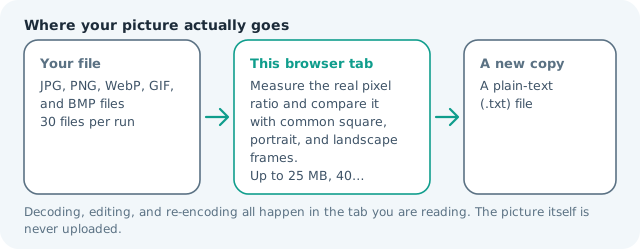
The report uses decoded pixel dimensions and compares the result with common square, portrait, and landscape frames.
Output formatPlain text (.txt)
Your files are read locally. Nothing is uploaded.
Your results
Pick a picture in the list to look at that file instead.
Full size
Actual pixels, straight from this browser — scroll to check edges and fine detail, then close.
Free to use. Local limits: up to 30 files, 100 MB per file, and 250 MB per batch, processed entirely in this browser. Nothing is uploaded; what stays on your device afterwards is the settings you last used and, after a run, the picture this page made so a next step can open it without choosing the file again. Start over deletes that picture.
Image Ratio Calculator at a glance
| Files it opens | JPG, PNG, WebP, GIF, and BMP files |
|---|---|
| Files you get back | A plain-text (.txt) file |
| Where the work happens | In this browser tab — the picture itself is never uploaded |
| Largest file | 100 MB, 40 megapixels or fewer |
| Largest batch | 30 files per run |
| Account, price, watermark | No sign-up, no charge, nothing stamped on your export |
When this helps
- Checking whether a photo already fits a social crop
- Choosing a crop frame before editing
- Explaining why a banner needs padding
- Comparing two assets before joining them
A 1,920 × 1,080 file reports 16:9 and 1.7778. A 1,200 × 1,500 file reports 4:5 and is close to common portrait social frames.
Detailed guidance
What Image ratio calculator is for
A ratio tells you how wide a picture is compared with how tall it is. That simple number prevents a common workflow mistake: choosing a crop or social frame before checking whether the source already matches it. A 16:9 banner, a square avatar, and a 4:5 portrait can all be high quality while needing different framing decisions. The report gives you the geometry before you throw away pixels. A browser canvas is good at repeatable pixel operations and poor at reading intent, so the control below stays narrow and names its output honestly.
What the local engine changes
The browser decodes the selected image and reads its natural pixel width and height. It calculates the greatest common divisor, simplifies the pair, computes a decimal ratio, and compares the result with common frames. No canvas export is needed for the report, so the original file is not rewritten and the ratio is not confused with its CSS display dimensions. The file is decoded in this tab, transformed in memory, and encoded as a new download; the source is never overwritten.
Limits and output trade-offs
The normal local limits apply: up to 30 files, 100 MB per file, and about 40 megapixels per decoded image. A batch report is useful for an asset folder, but it does not decide whether each picture has a good subject position. A matching ratio only means the outside shape fits; faces, text, and logos can still be cropped badly. A compressed camera file can occupy many times its disk size once decoded, which is what the ceilings are there to protect.
How to check the download
Check the reported width and height against the platform specification, then open the crop or resize page for the actual edit. If the number is nearly a common ratio but not exact, decide whether a few pixels of crop are acceptable. Keep the source until the final framing is reviewed in the receiving app. These effects are exports, not reversible edits, so keep the source until the copy has been judged where it will be used.
Other jobs this page does
Calculating an aspect ratio, checking a photo ratio, and reading dimensions as a ratio are one measurement. The resize and crop pages are the practical next steps when the ratio does not match the destination. The comparison counts decoded pixels, so a cropped frame and the uncropped file it came from report different ratios even when both were shot on the same camera.
When to use a stronger tool
This is not a composition analyser, a social-platform policy checker, or a tool that changes the image. It measures decoded pixels. If you need an exact output frame, use crop or resize after reading the report; if you need file facts beyond dimensions, use the metadata viewer.
Image Ratio Calculator questions
How do I calculate an image aspect ratio?
Add the image and the browser divides its decoded width and height by their greatest common divisor. The report shows the simplified ratio and decimal value.
Does the calculator use the image display size?
No. It reads the actual pixel dimensions stored by the decoded image. Browser CSS scaling, thumbnail size, and page layout do not change the reported ratio.
Can I use the ratio before cropping for social media?
Yes. Compare the report with the target frame, then use the crop or resize page to create the final dimensions. The ratio alone does not decide where the subject should sit.
Is the image uploaded to calculate its ratio?
No. The file is decoded in the current browser tab and the plain-text report is created locally. Only the selected image is read for its dimensions, and no upload endpoint is needed to simplify the width and height into a ratio.