
Local browser tool · Blur & pixelate
Pixelate Image Online
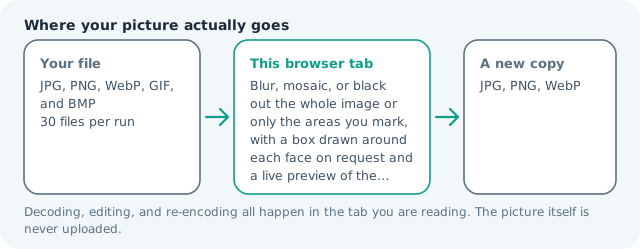
To pixelate an image online, choose Mosaic, then cover either the entire picture or just the boxes you drag over each face, plate, or line of text. This page averages the pixels inside those boxes into square blocks right here in the tab, so the mosaic you see in the preview is the mosaic you download, and the original file stays on your device the whole time.
Break the detail into blocks you can point at
Set the block size, choose Whole image or drag boxes over the parts that must not travel, and the preview renders the mosaic the file exports. Suitable for blur & pixelate tasks on JPG, PNG, WebP, GIF, and BMP files; the export is always a new copy.
Click a thumbnail to preview it before you start.
These are the settings you last used for this tool. They stay in this browser and are never sent anywhere.
Drag a rectangle over each face, plate, or line of text. The preview shows the effect you are about to export at full resolution.
The first press loads a face detector into this tab and keeps it there. It frames the face, not the hair or the chin, so check the boxes before you export.
A flat bar is the only setting that guarantees nothing shows through — a weak blur can be sharpened back.
Your files are read locally. Nothing is uploaded.
Your results
Pick a picture in the list to look at that file instead.
Full size
Actual pixels, straight from this browser — scroll to check edges and fine detail, then close.
Free to use. Local limits: up to 30 files, 100 MB per file, and 250 MB per batch, processed entirely in this browser. Nothing is uploaded; what stays on your device afterwards is the settings you last used and, after a run, the picture this page made so a next step can open it without choosing the file again. Start over deletes that picture.
Blur & pixelate at a glance
| Files it opens | JPG, PNG, WebP, GIF, and BMP |
|---|---|
| Files you get back | JPG, PNG, WebP |
| Camera data (EXIF) | Not copied — this browser writes a fresh picture from its pixels, so GPS, timestamps and camera tags stay in the file you started with |
| Where the work happens | In this browser tab — the picture itself is never uploaded |
| Largest file | 100 MB, 40 megapixels or fewer |
| Largest batch | 30 files per run |
| Account, price, watermark | No sign-up, no charge, nothing stamped on your export |
When this helps
- A number plate in a parked-car photo, hidden in the blocky style readers instantly recognise
- A screen name, balance, or handle inside a screenshot, censored without repainting the whole image
- A streaming or gaming still where faces must go but the scene has to stay readable
- A graphic that should look deliberately redacted, which a soft blur fails to convey
Measured on this page: the same 372 KB, 1,200 × 900 photo came back at 23 KB as a full-frame mosaic, lighter than the blurred version of itself because large blocks discard detail rather than smearing it. Size is not secrecy here, so zoom the export before trusting it.
Detailed guidance
Why a mosaic reads as censored and a blur does not
Mosaic is an averaging trick with a visible signature: squares. That is precisely why newsrooms and courts reach for it, because the viewer can tell something was hidden and where the boundary sits. A soft blur invites the eye to look through it, while blocks announce the edit. If you need the audience to know a detail was withheld on purpose, pixelate. If you need the fix to disappear into the composition, blur.
Blocking behaviour, explained properly
Pixelating divides the picture into squares and paints each one a single averaged color. Everything smaller than a block collapses into that average, which is why text goes unreadable long before a blur of comparable strength does. What survives is the coarse distribution of light and dark, so silhouettes, posture, and layout remain legible. That is the trade to understand: a mosaic destroys detail efficiently but keeps structure, and structure is sometimes the sensitive part.
Whole picture or selected boxes
Whole image is the right answer for a graphic you want unusable but still shareable as a shape. Only boxes I draw is the working mode for faces, plates, screens, receipts, and address blocks: drag one rectangle per sensitive area, and the preview paints the true mosaic inside each of them instead of a stub outline. Double-click a box to delete it, and use the clear button to start over without losing your file.
Getting it right on the first export
Zoom the preview to one hundred percent, then check the edges of every box. A rectangle that overlaps half a character leaves the other half perfectly legible, and half a plate number is enough for someone who knows the car. Grow the box rather than nudging the strength, because coverage failures are far more common than strength failures. Then look at the exported file at full size, since the preview is a reduced copy of a much bigger image and fine blocks read coarser at export scale than they do on screen.
When mosaic is the wrong tool
Anything you must be able to prove is unreadable to a determined reader wants a solid bar instead, because a bar writes flat color and leaves nothing to reconstruct. Screenshots of text usually want bars for the same reason. Faces in a low resolution thumbnail want a bar too, since there is barely any detail left to average. And a mosaic over content you would not want re-identified at all is a decision, not a setting: use a bar, or crop the region out.
The bar has the opposite failure mode, though. Cover a busy background with flat rectangles and you have destroyed the photograph while technically hiding the detail, which is the wrong trade when the image still has to work as an image. Weigh what the result needs to remain, then pick the effect that preserves the most picture for the least exposure, and remember that you can run a mosaic pass and then re-run the same boxes as a bar without touching your original.
Pixelate Image Online questions
What block size should I use?
Start around 22 on the strength slider, which is coarse enough to destroy facial detail and small text on most photos while still looking deliberate rather than accidental. If you can still read the shape of a word inside the blocks, raise it. A block that is roughly a fifth of the height of a face is a safe working rule.
Is a mosaic safer than a blur?
For the same visual effort they are close, and neither is a security control. A coarse mosaic is harder to reconstruct than a soft blur because averaging into large squares discards the underlying values instead of smearing them. A fine mosaic on a high resolution source is genuinely recoverable, so err coarser than feels pretty.
Can pixelated content be recovered?
Partly, if the blocks are small relative to the detail and someone has strong software and patience. There are published reconstructions of coarse mosaics taken from high resolution video. Once blocks approach the size of the feature being hidden, recovery stops being a realistic threat, which is why the preview matters more than the number.
Does pixelating reduce the quality of the rest of the photo?
No. Everything outside your boxes is redrawn at full resolution, and the exported file is written with the quality you set. The only global change is the encoder you choose, exactly as it would be for a plain re-save.
Why does my mosaic look finer after exporting?
Because the preview is a reduced copy of a much larger image and block size scales with it. Open the downloaded file at one hundred percent to judge what a recipient sees. If the coverage looks thin there, raise the strength and run it again rather than trusting the small view.