
Local browser tool · Portrait Background Remover
Portrait Background Remover
A portrait background remover takes the person out of a photo and throws the rest away. On this page the whole job runs inside your browser: drop in a picture of someone, the engine works out which pixels belong to them and which belong to the backdrop, and you get a transparent PNG or a single flat colour behind the subject. Nothing is ever uploaded, and the result is a separate copy, so your original file stays untouched.
Cut the person out of a photo and drop the background
Remove the background from a portrait on your own device and download a transparent PNG, or a clean solid colour behind the person instead. Suitable for portrait background remover tasks on JPG, PNG, WebP, GIF, BMP, and HEIC files; the export is always a new copy.
Click a thumbnail to preview it before you start.
These are the settings you last used for this tool. They stay in this browser and are never sent anywhere.
This cuts out a person. Products, animals, and objects are outside what the model was built for, so check the hairline before you rely on the result.
Output formatPNG (carries transparency)
Your files are read locally. Nothing is uploaded.
Your results
Pick a picture in the list to look at that file instead.
Full size
Actual pixels, straight from this browser — scroll to check edges and fine detail, then close.
Free to use. Local limits: up to 30 files, 100 MB per file, and 250 MB per batch, processed entirely in this browser. Nothing is uploaded; what stays on your device afterwards is the settings you last used and, after a run, the picture this page made so a next step can open it without choosing the file again. Start over deletes that picture.
Portrait Background Remover at a glance
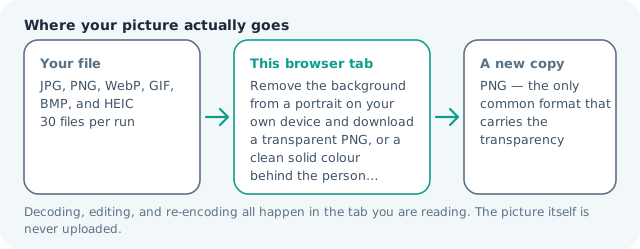
| Files it opens | JPG, PNG, WebP, GIF, BMP, and HEIC |
|---|---|
| Files you get back | PNG — the only common format that carries the transparency |
| Camera data (EXIF) | Not copied — this browser writes a fresh picture from its pixels, so GPS, timestamps and camera tags stay in the file you started with |
| Where the work happens | In this browser tab — the picture itself is never uploaded |
| Largest file | 100 MB, 40 megapixels or fewer |
| Largest batch | 30 files per run |
| Account, price, watermark | No sign-up, no charge, nothing stamped on your export |
When this helps
- An identity or application photo that needs a plain, even backdrop
- A team page where every headshot has to sit on the same colour
- Replacing a distracting room behind a subject with no studio to reshoot in
- Seeing exactly where a person-only model fails before trusting the cut-out
Measured on this page: an 820 × 1,024 portrait of 172 KB became a transparent PNG of 830 KB in about two and a half seconds once the model had loaded, with the card reporting 51% of the frame kept as the person. The alpha channel is why it grows — a transparent PNG cannot weigh less than the JPG that came in, so expect roughly five times the input. Pointed at a landscape photo with nobody in it, the same engine still produced a cut: 3.55 MB in, 11.50 MB out, and a confident “41% kept”. That percentage describes what the model decided, not what is true.
Detailed guidance
What the engine decides about your photo
Behind the button is a small neural network that was trained on photographs of people, and it answers one question about each pixel: how likely is this to be the person rather than the room behind them? Your picture is first scaled down to a working size, then mapped onto a grid of roughly 256 by 256 positions, one soft probability per position. That grid is stretched back over your photo, smoothed while it scales so the boundary does not turn into staircases, and used as a stencil: whatever the model believed was you survives, and the rest is set to fully transparent. The output you download is a PNG, because PNG is the format that carries transparency without a licence argument attached to it.
Why the hairline is the whole difficulty
Everything else about a cut-out is easy. The edge is not. A probability grid is a fine instrument on a face and a coarse one on wisps of hair, so loose strands, the gap between an arm and a hip, and the tips of fingers are the first things to look wrong. The model was measured on its own test set at a little over ninety percent agreement with human tracings, and almost all of that disagreement lives on those edges rather than in the middle of the subject. Dark hair against a dark wall and fair hair against a bright window are the two inputs that cost the most, because there is no contrast for anything to lock onto. Check the result at full zoom, over both a dark and a light surface, before you assume the preview was kind to you.
What this page will not do for you
The honest boundaries are worth stating before you waste a run on them. It segments people, because the weights were only ever shown people, and it keeps one dominant subject, so a group shot leaves the other faces attached to the background. What it cannot do is tell you that it was handed the wrong picture. On our own test frames an aerial photograph of a coastline with nobody in it came back with 37 percent of the frame labelled as the subject, while a face cropped so tightly that it fills the picture came back with no subject at all — a non-portrait input earns a confident wrong answer rather than a clean refusal. That is why the result card prints the share of the frame it kept: compare that number with how much of the picture the person actually occupies, and treat a wide gap as a broken cut rather than a quirk. The training data also assumed a phone held at arm length, and accuracy drops off past roughly four metres from the camera, so a full-body shot taken from across a room is a worse input than a waist-up crop. And this is a boundary finder, not an editor: it cannot recover hair that was out of focus, see through a curtain, or reconstruct what the backdrop hid.
Getting a clean cut on the first pass
Four habits carry almost all of it. Put the subject far enough from the background that a soft shadow separates them from the wall. Choose a backdrop that differs from hair and clothing in brightness, not just in hue. Give the model a person rather than a face — head and shoulders, with the body still inside the frame, since a crop so tight that features fill the picture is the input it reads as nobody at all. And avoid motion blur and heavy grain, both of which smear the edge the model is trying to find. When a result has a halo, the fix is a different crop or a different source photo rather than another setting here, because there is only one setting on this page and it controls what goes behind the subject, not where the edge falls.
Where a portrait cut-out earns its keep
The obvious one is a formal headshot whose studio backdrop is the wrong colour for the destination: cut the person out once, then drop them onto the grey, white, or blue your authority specifies without reshooting. Team pages and staff directories are the second case — a set of photos taken on six different holidays becomes one coherent grid when every subject sits on the same flat colour, and this page has that exact option. Avatars, slide decks, newsletters, and profile pictures for a rebrand are the everyday version. For anything involving a face you did not photograph, the transparency is a tool rather than a toy, and the people in the picture deserve a say in the composite.
Privacy, weight, and what happens after you download
There is no upload step to trust or distrust: the engine and its model download into the tab, run against your file locally, and never post your photo anywhere, which is the entire reason a picture of your face can be used here without a second thought. The cost of that design is a first run that pauses while several megabytes arrive, and no support at all in browsers too old to run modern compiled code. Once you have the PNG, mind two things. Transparency flattens onto white or black the moment anyone saves it as a JPG, so hand off the PNG or set the flat colour here yourself. And an alpha channel is heavier than a plain photo, so if the file has to fit a form limit, run the cut-out through the compressor afterwards rather than hoping the shape alone came out cheap.
Portrait Background Remover questions
How do I remove the background from a photo?
Add a portrait and the model maps which pixels are the person, then cuts the rest away. Choose transparent for a PNG you can drop onto any design, or one solid colour when the destination will not accept transparency. Both are new files, never an overwrite.
Why did my picture come back with the background still there?
The segmenter recognises people and nothing else, so a product, an animal, or a landscape yields no usable mask, and a person filling under about one percent of the frame may not either. Rather than handing back an empty rectangle, the page says so. Crop tighter and try again.
Will it cut cleanly around hair?
Better than you would expect, because the mask is computed small and then smoothed as it scales back up, which keeps hairlines soft instead of stair-stepped. Fine wisps and thin gaps such as the space between an arm and a torso stay hard cases, so check the result.
Can I use this for a passport or visa photo?
It handles the difficult half: an even background and a clean edge. It does not handle the geometry. After removing the background, crop to the head size the authority states and resize to the exact pixel dimensions it demands, then compare against its sample.
Does my portrait get uploaded anywhere?
No. The segmentation model is downloaded once from this site and then runs on your own hardware, so an identity photo or a picture of a child never leaves the device. That is also why a browser without modern WebAssembly support cannot run this page at all.