
Local browser tool · Compress
Compress Image Online
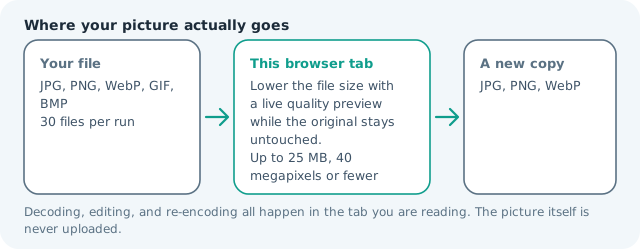
To compress an image online without uploading it, drop the file onto this page and drag the quality slider until the preview matches the size you need. The tool re-encodes your JPG, PNG, or WebP inside your browser, shows the new byte count next to the original, and hands you a separate smaller copy — your source file is never modified, never registered, and never sent to a server.
Make a smaller copy of your image
Lower the file size with a live quality preview while the original stays untouched. Suitable for compress tasks on JPG, PNG, and WebP files; the export is always a new copy.
Click a thumbnail to preview it before you start.
These are the settings you last used for this tool. They stay in this browser and are never sent anywhere.
Estimated output —
Your files are read locally. Nothing is uploaded.
Your results
Pick a picture in the list to look at that file instead.
Full size
Actual pixels, straight from this browser — scroll to check edges and fine detail, then close.
Free to use. Local limits: up to 30 files, 100 MB per file, and 250 MB per batch, processed entirely in this browser. Nothing is uploaded; what stays on your device afterwards is the settings you last used and, after a run, the picture this page made so a next step can open it without choosing the file again. Start over deletes that picture.
Compress at a glance
| Files it opens | JPG, PNG, WebP, GIF, BMP |
|---|---|
| Files you get back | JPG, PNG, WebP |
| Camera data (EXIF) | Not copied — this browser writes a fresh picture from its pixels, so GPS, timestamps and camera tags stay in the file you started with |
| Where the work happens | In this browser tab — the picture itself is never uploaded |
| Largest file | 100 MB, 40 megapixels or fewer |
| Largest batch | 30 files per run |
| Account, price, watermark | No sign-up, no charge, nothing stamped on your export |
When this helps
- Email and contact-form attachments that reject large files
- Product photos for marketplace listings with a per-image size cap
- WebP conversions that cut page weight without visible blur
- Bulk photo cleanup before a trip or a shared album
Measured on this page with one 3,992 × 2,992 photo that arrived at 3.55 MB: quality 85 returned 2.55 MB, quality 82 returned 2.31 MB, quality 75 returned 1.77 MB, and WebP at quality 82 returned 1.73 MB. The same picture carried in as a 19.28 MB PNG fell to 2.38 MB. Small files move least — a 172 KB phone shot only reached 142 KB — so the payoff is on camera originals, not on pictures that have already been squeezed once. Target mode pulls a second lever. A 200 KB request on a 4,000 × 3,000 photo of 844 KB came back at 197 KB with every pixel intact, while the same photo against a 50 KB cap landed at 48 KB once the frame had come down to 2,339 × 1,754, and a heavier 6.09 MB, 12 MP frame reached 43 KB at 1,996 × 1,496 — quality alone has a floor well above those caps on a frame that size, so a tight budget is met by trading pixels, and the result card names the frame it landed on. PNG cannot play this game: it stores pixels losslessly, so pick JPG or WebP when the byte cap is the whole point.
Detailed guidance
How the compression works on your device
Your browser decodes the picture into a canvas, then writes it back out with a tighter encoder setting. For photos, most of the savings come from smarter color packing rather than throwing detail away, which is why quality 80 usually halves a JPG with no visible change. Flat-color graphics behave differently: PNG can grow when re-encoded, so compare both numbers in the result card before choosing the output format.
Where a size target actually matters
Attachment limits are the everyday case — a mail provider that bounces at 25 MB or a job portal that caps each upload at 2 MB. Listing sites such as marketplaces and booking forms often state a pixel-plus-kilobyte pair, so set the size first with the resizer, then compress to the byte limit here. When a page gives no number, aim for under 200 KB per web image; it loads quickly on mobile data and survives most form filters.
What to check after you download
Open the result once at full zoom and look at text edges, faces, and sky gradients — those reveal over-compression first. If banding or blockiness appears, raise the slider one notch and export again; each pass takes under a second locally. Keep the original archived: repeated JPG re-saving compounds generation loss, so it is always better to compress once from the cleanest source you have.
Situations where this earns its keep
Seller centres cap listing photos at one to five megabytes and reject the camera original without explanation. Job portals and booking forms do the same, and they usually also cap the total attachment weight. Email still bounces anything over roughly 25 MB, and a single phone photo can break that ceiling on its own. Blogs want pictures light enough that a mobile reader on a slow connection never sees a blank box. Every one of those is a byte problem rather than a pixel problem, which is exactly what this page answers: you keep the resolution you have and hand over a lighter encoding. Because the work happens on your own machine, bank statements, ID scans, and unreleased product shots never travel across a network or land in somebody elses temporary storage folder, and a batch of thirty files runs unattended while you do something else.
Where the local engine draws its line
Three honest limits are worth knowing. Metadata: re-encoding writes a fresh file, so EXIF capture data does not survive the pass — copy anything you need to keep before you compress. Animation: an animated GIF flattens to a single frame, so use a video or a GIF editor instead. Editing in place: the tool never touches your original, which protects you but means you should archive results yourself rather than hunting for a lost file. Raw camera formats are not accepted either; export a JPEG from your camera software first. None of these are paywall tricks — they are the boundaries of what a browser canvas can responsibly do to a file without a server involved.
Compress Image Online questions
How do I make an image smaller without ruining it?
Pick the quality slider and watch the byte count while you drag. Most photographs look identical between quality 78 and 88, so start near 82, step down once if the number still misses your target, and stop the moment it fits. Each pass takes under a second because nothing is uploaded.
Should I lower the quality or the pixel size first?
Lower the pixel size first when the destination never shows the full image, because a 4000 px photo shrunk to 1600 loses nothing a phone can display and sheds more weight than a harsher compression pass. Then compress to the byte cap. Dimensions cost more than encoding does.
Can I hit an exact file size instead of guessing a quality number?
Yes. Switch the mode to target file size and type the kilobytes the form allows, and the encoder walks the quality steps for you instead of leaving you to drag a slider and hope. It reports the size it reached, which can sit above the target when no step gets there.
Why did my PNG come out bigger than it went in?
PNG stores flat colour and crisp edges efficiently, so re-encoding a small graphic can add overhead the original never needed. When the result card says the file grew, switch the output to WebP, or leave the PNG alone and compress a photograph instead, where the savings are large.
Does the smaller copy keep its EXIF data?
No. Re-encoding writes a new file, so capture date, camera settings, and GPS coordinates do not carry across. That is usually an advantage when publishing outside your circle, but copy anything you want to keep before compressing, since none of it can be recovered afterwards.