
Local browser tool · Sharpen Image
Sharpen Image
Sharpen an image when the source is slightly soft after resizing, scanning, or web compression. ImageMunch applies a controlled local edge boost in your browser and exports a new copy without changing the original dimensions. It can improve perceived crispness around letters and product edges, but it cannot reconstruct detail that focus blur, motion blur, or a tiny source never captured. The strength control makes that limit visible instead of promising an AI restoration.
Add controlled crispness to a soft image
Boost local edge definition and keep the original dimensions and source file unchanged. Suitable for sharpen image tasks on JPG, PNG, WebP, GIF, and BMP files; the export is always a new copy.
Click a thumbnail to preview it before you start.
These are the settings you last used for this tool. They stay in this browser and are never sent anywhere.
Sharpening increases local edge contrast. It cannot restore detail lost to strong focus blur or motion blur.
Your files are read locally. Nothing is uploaded.
Your results
Pick a picture in the list to look at that file instead.
Full size
Actual pixels, straight from this browser — scroll to check edges and fine detail, then close.
Free to use. Local limits: up to 30 files, 100 MB per file, and 250 MB per batch, processed entirely in this browser. Nothing is uploaded; what stays on your device afterwards is the settings you last used and, after a run, the picture this page made so a next step can open it without choosing the file again. Start over deletes that picture.
Sharpen Image at a glance
| Files it opens | JPG, PNG, WebP, GIF, and BMP files |
|---|---|
| Files you get back | JPG, PNG, WebP |
| Camera data (EXIF) | Not copied — this browser writes a fresh picture from its pixels, so GPS, timestamps and camera tags stay in the file you started with |
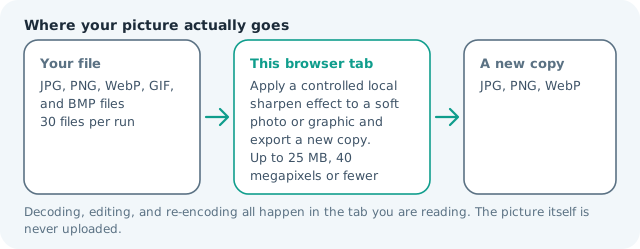
| Where the work happens | In this browser tab — the picture itself is never uploaded |
| Largest file | 100 MB, 40 megapixels or fewer |
| Largest batch | 30 files per run |
| Account, price, watermark | No sign-up, no charge, nothing stamped on your export |
When this helps
- Adding edge definition to a slightly soft web photo
- Making a small screenshot easier to read
- Preparing a product image after a modest resize
- Testing a crispness adjustment before opening a full editor
A moderate 35 percent pass makes letters and product edges more distinct while leaving broad colour areas mostly unchanged. A high setting can create a bright or dark rim, which is a visible artefact rather than recovered detail.
Detailed guidance
What Sharpen image is for
A resize or a compressed export can make a clean source look slightly soft even when the subject is still usable. A small edge boost is often enough for a screenshot, product listing, or document preview. Sharpening is a contrast operation rather than a time machine: it makes existing boundaries more noticeable, while it cannot know which detail a blurred camera frame failed to record. A browser canvas is good at repeatable pixel operations and poor at reading intent, so the control below stays narrow and names its output honestly.
What the local engine changes
The canvas reads neighbouring pixels around each location and increases the difference at local edges by the selected strength. Broad flat areas receive little change, while letters, hair, product outlines, and high-contrast borders become more pronounced. The image is then encoded as a fresh copy. Alpha remains unchanged when the output format supports transparency. The file is decoded in this tab, transformed in memory, and encoded as a new download; the source is never overwritten.
Limits and output trade-offs
The page follows the normal 30-file, 100 MB-per-file, and roughly 40-megapixel limits. A decoded canvas is much larger than a compressed JPG, so a batch of camera originals can use substantial memory. High sharpening can also make JPG artefacts more visible and can increase the final size, so a softer low-quality source is better resized or re-exported before it is sharpened. A compressed camera file can occupy many times its disk size once decoded, which is what the ceilings are there to protect.
How to check the download
Open the output at 100 percent and inspect text, faces, diagonal lines, and smooth skies. Halos around edges mean the setting is too high for that source. Check the final file in its destination because a thumbnail can look crisp while the full-size output carries obvious ringing. These effects are exports, not reversible edits, so keep the source until the copy has been judged where it will be used.
Other jobs this page does
The image sharpener, sharpen image online, image sharpening, and unblur searches all describe the same useful but bounded edge treatment. Resize and compress are common next steps when the softness came from a delivery copy rather than the original camera file. Sharpening belongs last, after resizing and before compression, because both of those steps undo it: a downscale softens the edges again, and a lossy export blurs exactly the boundaries the pass has just raised.
When to use a stronger tool
This is not AI upscaling, deblurring, denoising, or detail reconstruction. It does not create new pixels or identify the subject. For a severely blurred photo, return to the original capture or use a specialised restoration model and label the result as reconstructed.
Sharpen Image questions
Can I unblur an image online?
This tool can sharpen a slightly soft image by increasing local edge contrast. It cannot restore detail lost to strong focus blur, motion blur, or a very small source.
Will sharpening change the image size?
The pixel dimensions stay the same. The output file size can change because the image is encoded again and sharper edges may compress differently. Check both dimensions and bytes before sending it to a size-limited form.
How much sharpening should I use?
Start with the default moderate setting and inspect text, hair, and high-contrast edges at 100 percent. Reduce it if bright or dark halos appear, because halos are artefacts rather than recovered detail.
Does the sharpen image tool upload my file?
No. The edge operation runs in your browser and creates a local download. Your source file stays in the current tab and is not added to a remote processing queue.