
Local browser tool · Join
Join Images Into One
To join images into one file online without uploading them, drop the pictures onto this page, drag the cards into the order you want, and choose a layout: stacked vertically, side by side horizontally, or tiled on a grid. The tool scales every picture to a shared edge, keeps your chosen spacing, and exports a single merged copy — all inside your browser, so receipts, comparisons, and screenshots never touch a server.
Merge several images into one picture
Stack photos vertically, side by side, or on a grid with even spacing and a shared canvas. Suitable for join tasks on JPG, PNG, and WebP files; the export is always a new copy.
Click a thumbnail to preview it before you start.
These are the settings you last used for this tool. They stay in this browser and are never sent anywhere.
Your files are read locally. Nothing is uploaded.
Your results
Pick a picture in the list to look at that file instead.
Full size
Actual pixels, straight from this browser — scroll to check edges and fine detail, then close.
Free to use. Local limits: up to 30 files, 100 MB per file, and 250 MB per batch, processed entirely in this browser. Nothing is uploaded; what stays on your device afterwards is the settings you last used and, after a run, the picture this page made so a next step can open it without choosing the file again. Start over deletes that picture.
Join at a glance
| Files it opens | JPG, PNG, WebP, GIF, BMP |
|---|---|
| Files you get back | JPG, PNG, WebP |
| Camera data (EXIF) | Not copied — this browser writes a fresh picture from its pixels, so GPS, timestamps and camera tags stay in the file you started with |
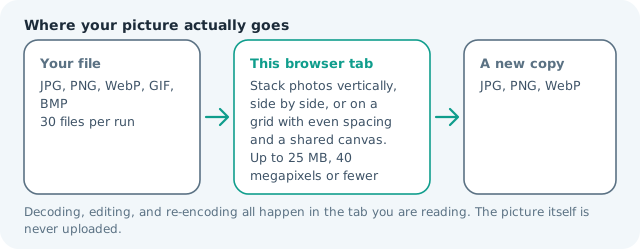
| Where the work happens | In this browser tab — the picture itself is never uploaded |
| Largest file | 100 MB, 40 megapixels or fewer |
| Largest batch | 30 files per run |
| Account, price, watermark | No sign-up, no charge, nothing stamped on your export |
When this helps
- Combining receipts or proof screenshots into a single attachment
- Before-and-after comparisons side by side for a listing
- Long stitched captures when a scrolling screenshot is unavailable
- Grid collages for a quote card or a travel recap
Measured on this page: an 820 × 1,024 photo and a 900 × 675 one — 436 KB between them — joined vertically into a single 900 × 1,811 file of 320 KB. The same pair on a two-column grid came out 1,812 × 1,024 at 309 KB, and side by side 2,197 × 1,024 at 426 KB, because a wide canvas gives JPG less to exploit. Adding the 3.55 MB, 12-megapixel photo to the small one produced a 6,400 × 2,992 sheet, so the biggest picture and the layout set the ceiling before quality does.
Detailed guidance
The layouts and when each one wins
Vertical stacking is the receipt-and-proof pattern: one continuous image that survives email clients and reads top to bottom on a phone. Horizontal suits before-and-after pairs where the eye should travel side to side. Grids fit four to nine similar-ratio pictures — a product set, a trip recap — and stay close to square overall. Mixed orientations are fine; the shared-edge scaling lines up widths or heights and padding absorbs the rest.
Keeping merged images crisp and small
A join canvas is only as sharp as its resolution budget: keep the default, which matches the largest source image, so every panel exports at native detail, and only raise the canvas if you plan to print. Long vertical stacks of screenshots can grow heavy fast, so after merging, run the result through the compressor once — a stitched proof image at quality 82 is usually indistinguishable and half the weight.
Order and spacing are worth five seconds
The card order on the strip is the final layout order, so reorder before exporting rather than re-merging later. Even gaps between panels read as deliberate; a 12-16 px gutter with a white or brand background color turns mismatched screenshots into something that looks designed. If one panel looks trimmed, switch that card from Fill to Fit to reveal its whole picture.
Jobs that suit each layout
Expense claims and medical receipts travel best as one continuous strip, because most finance systems accept a single attachment and reviewers read top to bottom on a phone. Insurance comparisons want horizontal pairs so the eye can travel across to judge difference instead of scrolling back to remember it. A product set or a trip recap belongs on a grid, which is the layout that reads as composed rather than dumped. Multi-page scans and long conversations are the classic stitched screenshot, and two moderate stacks beat one enormous canvas, because a 20,000-pixel-tall image fails silently inside some chat apps and refuses to preview at all on others.
Reading the merged result
Open the composite and judge the seams first: equal gaps and matching panel widths mean the shared-edge scaling worked, while one cropped panel means that card used Fill and lost pixels — switch it to Fit and re-export. Text-heavy panels reveal the export quality setting sooner than photographs, so if the merge carries small print, move the slider up a step or export as PNG. Before exporting, double-check card order, because the strip order is the final layout order and fixing a mistake afterwards means re-merging. If the whole thing reads as too tall for its destination, split it into two joins rather than letting the platform shrink it into illegibility. Rename the merged file the moment it lands, too: exports arrive as a generic name, and three files called joined-imgmunch.jpg turn into a guessing game a week later when the claim form comes back.
Join Images Into One questions
How many images can I join into one?
Up to thirty files in a batch, with at least two for a join. The queue order is the layout order, so add them in sequence. Very large collections are limited by canvas size rather than by the count, and the sheet scales down if it has to.
Will joining stretch or squash my photos?
No. Every image keeps its own proportions, scaled to a shared row or column height. Where the shapes differ you get background colour around the shorter ones rather than a distorted picture, and that background is yours to change from white to anything that suits the layout.
Can I arrange the result as a grid instead of a strip?
Yes. Choose grid and set the number of columns, and the images flow left to right into cells sized to the largest one. The gap control then adds separation from a hairline join up to eighty pixels, which is what turns a tight mosaic into something readable.
Why is the joined file heavier than the parts?
One canvas has to hold every pixel plus the gaps, and a single large encode can outweigh several small files. If the destination caps weight, send the joined sheet through the compressor next. Dimensions and framing stay exactly as they were; only the encoding changes.
Can I join screenshots of a conversation?
That is one of its best uses. A vertical stack with a small gap keeps a chat thread readable in a single image, which is what most forms and messaging apps expect, and unlike a document it can be pasted anywhere a picture is accepted.