
Local browser tool · Image to Pixel Art
Image to Pixel Art
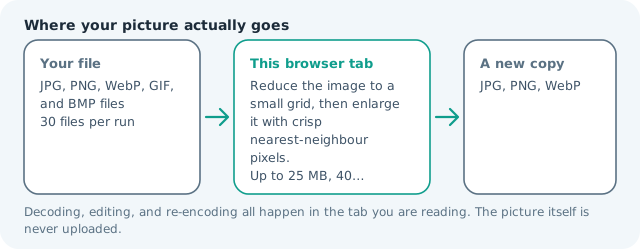
Convert an image to pixel art when a photo, avatar, or icon needs a deliberate blocky treatment. ImageMunch reduces the picture to a smaller colour grid and enlarges it with nearest-neighbour sampling, so the cells stay crisp instead of becoming a blurry resize. Choose the block size to control how much detail survives. The result is a stylised image, not a game-ready sprite sheet or a hand-pixeled illustration.
Give a photo a crisp retro pixel treatment
Choose the grid block size and export a nearest-neighbour pixel-art copy. Suitable for image to pixel art tasks on JPG, PNG, WebP, GIF, and BMP files; the export is always a new copy.
Click a thumbnail to preview it before you start.
These are the settings you last used for this tool. They stay in this browser and are never sent anywhere.
Smaller blocks keep more detail. Larger blocks create a stronger retro grid.
Your files are read locally. Nothing is uploaded.
Your results
Pick a picture in the list to look at that file instead.
Full size
Actual pixels, straight from this browser — scroll to check edges and fine detail, then close.
Free to use. Local limits: up to 30 files, 100 MB per file, and 250 MB per batch, processed entirely in this browser. Nothing is uploaded; what stays on your device afterwards is the settings you last used and, after a run, the picture this page made so a next step can open it without choosing the file again. Start over deletes that picture.
Image to Pixel Art at a glance
| Files it opens | JPG, PNG, WebP, GIF, and BMP files |
|---|---|
| Files you get back | JPG, PNG, WebP |
| Camera data (EXIF) | Not copied — this browser writes a fresh picture from its pixels, so GPS, timestamps and camera tags stay in the file you started with |
| Where the work happens | In this browser tab — the picture itself is never uploaded |
| Largest file | 100 MB, 40 megapixels or fewer |
| Largest batch | 30 files per run |
| Account, price, watermark | No sign-up, no charge, nothing stamped on your export |
When this helps
- Making a retro avatar or game-style thumbnail
- Creating a blocky reference from a photo
- Reducing a small icon to a crisp pixel grid
- Testing a pixel-art treatment before manual editing
At an 8-pixel block size, a 1,600-pixel-wide photo is reduced to roughly 200 colour cells and then enlarged back to its capped canvas size. The output keeps a deliberate grid rather than smoothing between cells.
Detailed guidance
What Image to pixel art is for
Pixel art is built from a small grid where each cell is intentional. A camera photo is not pixel art by itself, but reducing it to block-sized colour decisions can create a useful retro reference, avatar treatment, or game-inspired thumbnail. This page exposes the main decision directly: the block size controls how much of the original structure remains visible. A browser canvas is good at repeatable pixel operations and poor at reading intent, so the control below stays narrow and names its output honestly.
What the local engine changes
The tool first caps the decoded canvas at the local pixel ceiling, then draws it into a smaller canvas with image smoothing disabled. That small grid is enlarged back to the output canvas with nearest-neighbour sampling. The result keeps hard square cells and does not blur the boundaries between them. The output format and quality still control the final download. The file is decoded in this tab, transformed in memory, and encoded as a new download; the source is never overwritten.
Limits and output trade-offs
The ordinary local limits are 30 files, 100 MB per input, and about 40 megapixels per decoded source. A small block size keeps a large working grid, while a large source can still require memory before the reduction happens. For a phone, resize the input to the intended display size first when the original is much larger than the finished pixel-art image. A compressed camera file can occupy many times its disk size once decoded, which is what the ceilings are there to protect.
How to check the download
View the output at 100 percent and at the size where it will be shown. Check eyes, lettering, diagonal lines, and transparent edges because those reveal whether the grid is too coarse. If a sprite needs exact dimensions, run the result through resize and make sure the receiving engine uses nearest-neighbour scaling again. These effects are exports, not reversible edits, so keep the source until the copy has been judged where it will be used.
Other jobs this page does
Pixel-art converters, blocky game-style portraits, and turning a photograph into chunky pixels all reduce the same grid. The posterize page changes colour levels without changing spatial resolution, while this page changes the spatial grid first. Block size is measured in output pixels, so the same setting looks coarser on a thumbnail than on a poster, and fine text in the source is the first thing to go.
When to use a stronger tool
This is not a hand-pixeling editor, automatic sprite segmentation, palette optimizer, or Minecraft world generator. It does not know which areas should become separate objects or animation frames. It creates a consistent block treatment that gives you a starting image and a predictable export.
Image to Pixel Art questions
How do I turn a picture into pixel art?
Choose a block size, add the image, and press the button. The browser reduces the source to a smaller grid and scales it back up without smoothing between cells.
What does the pixel block size control?
Small blocks keep more detail and create a subtle effect. Large blocks remove more detail and create a stronger retro style. Preview the result at its intended display size because a block that looks right on a thumbnail may be too coarse full screen.
Can pixel art keep a transparent background?
Yes. Use PNG or WebP when alpha matters. JPG cannot store transparent pixels and will flatten them during export, so check the output format before downloading a logo or cut-out.
Does this make a sprite sheet?
No. It creates one stylised image. Use the splitter or a full editor afterward for separate frames and exact sprite layouts, because this page does not detect animation cells or game objects.