
Local browser tool · Remove Image Metadata
Remove Image Metadata
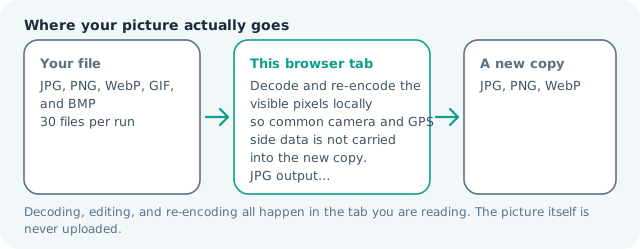
To remove image metadata before sharing, add the photo and export a clean copy. ImageMunch decodes the visible pixels in your browser and writes them into a new JPG, PNG, or WebP file, so common camera, filename, and GPS side data is not carried through the canvas export. The original stays untouched. This is a practical privacy step for ordinary sharing, not a claim to be a forensic scrubber for every proprietary application chunk.
Make a cleaner copy before the photo travels
Re-encode visible pixels locally and leave common camera-side data behind. Suitable for remove image metadata tasks on JPG, PNG, WebP, GIF, and BMP files; the export is always a new copy.
Click a thumbnail to preview it before you start.
These are the settings you last used for this tool. They stay in this browser and are never sent anywhere.
Re-encoding creates a fresh copy. Choose PNG or WebP when transparency matters; JPG flattens it.
Your files are read locally. Nothing is uploaded.
Your results
Pick a picture in the list to look at that file instead.
Full size
Actual pixels, straight from this browser — scroll to check edges and fine detail, then close.
Free to use. Local limits: up to 30 files, 100 MB per file, and 250 MB per batch, processed entirely in this browser. Nothing is uploaded; what stays on your device afterwards is the settings you last used and, after a run, the picture this page made so a next step can open it without choosing the file again. Start over deletes that picture.
Remove Image Metadata at a glance
| Files it opens | JPG, PNG, WebP, GIF, and BMP |
|---|---|
| Files you get back | JPG, PNG, WebP |
| Camera data (EXIF) | Not copied — this browser writes a fresh picture from its pixels, so GPS, timestamps and camera tags stay in the file you started with |
| This page is already set to | JPG output |
| Where the work happens | In this browser tab — the picture itself is never uploaded |
| Largest file | 100 MB, 40 megapixels or fewer |
| Largest batch | 30 files per run |
| Account, price, watermark | No sign-up, no charge, nothing stamped on your export |
When this helps
- Preparing a photo for a public post
- Removing common location data before sending an attachment
- Creating a clean web copy from a camera original
- Re-encoding a file after checking its dimensions
A 4 MB camera JPEG can return as a 1.1 MB clean JPG at quality 82, with the same decoded dimensions and no original file name or camera-side fields carried through the canvas export.
Detailed guidance
What Remove image metadata is for
A photo can carry more context than its visible scene: a camera model, a capture time, a device name, or a location tag. Many receiving services strip some fields, but relying on an unknown platform is a poor privacy workflow. A clean re-encode gives you a new delivery copy whose content is the rendered picture rather than a verbatim copy of the camera container. A browser redraws pixels reliably; it cannot guess what a picture was meant to do. So the control below stays narrow, and the file it hands back is named for the job it did.
What happens in this browser tab
The browser decodes the image into a canvas and encodes that canvas again. Canvas carries the visible pixel grid and alpha where the chosen format supports it; it does not preserve the original camera directory, GPS block, or application-specific chunks by default. The export is created locally, and the source file is never modified or transmitted. Nothing waits in a server queue, and the file you chose is never rewritten: you get a new copy with its own download link.
Limits that are part of the tool
The output follows the normal ImageMunch file and pixel limits. A JPG-to-JPG re-encode is lossy, so choose a high enough quality or use PNG for graphics that need exact edges. If the image contains transparency, do not choose JPG unless you deliberately want the transparent area flattened onto a colour. A decoded canvas costs several times its disk size in memory, which is why a slow phone should work in smaller batches or from a smaller source.
How to check the result before publishing it
Open the clean copy in a metadata-capable viewer if the privacy decision matters. Check the visible image as well: the dimensions should match, the crop should not change, and transparency should survive when PNG or WebP is selected. Keep the source until those checks are finished. Judge the download in the application that will receive it rather than in the preview here, and keep the original until you have.
Other jobs this page does
EXIF questions, GPS worries, stripping JPG metadata, and cleaning a photo before a share all resolve to the same re-encode. The viewer page helps inspect stable file facts first; the compressor and converter pages handle byte size and compatibility after the clean copy exists.
When another tool is the honest choice
This is not a legal guarantee, a secure deletion workflow, or a way to erase information painted into the pixels. A street sign, face, or printed address remains visible because it is part of the image itself. For high-risk material, use a dedicated metadata tool and a documented review process.
Remove Image Metadata questions
Does this remove GPS data from a photo?
The new canvas export does not write the original GPS and camera fields into its output. Check the downloaded file in the app that will receive it when location privacy is important, because metadata support differs by format.
Will the clean copy look different?
The visible pixels keep their dimensions, but the selected output format and quality control how they are encoded. PNG is the safer choice for lossless graphics; JPG or WebP is usually lighter for ordinary photos.
Is this a complete EXIF remover?
No. It is a browser canvas re-encode for common share-cleanup needs, not a certified forensic eraser. It does not inspect every proprietary application chunk or promise a legal evidence result.
Can I remove metadata from multiple photos?
Yes. Add a batch and each photo is decoded and written as its own clean copy. The originals are never overwritten, so you can inspect the results before replacing files in your folder.