
Local browser tool · Image to Text
Image to Text Converter
Convert an image to text without uploading anything: drop a photo, scan, or screenshot onto this page and the reader finds the printed words inside it. The engine runs in your own browser, so the text arrives in a box you can copy in one click or save as a .txt file. Add up to thirty files at once, and switch off paragraph joining when you need the original line breaks kept.
Turn a picture of words back into words you can edit
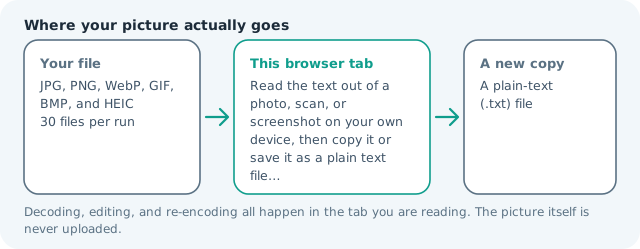
Read the text out of a photo, scan, or screenshot on your own device, then copy it or save it as a plain text file. Suitable for image to text tasks on JPG, PNG, WebP, GIF, BMP, and HEIC files; the export is always a new copy.
Click a thumbnail to preview it before you start.
These are the settings you last used for this tool. They stay in this browser and are never sent anywhere.
The reading engine — a few megabytes of local code and its English model — loads when you first press the button, then is reused for every file in the batch. Turning off the paragraph option above keeps each line break where the page had it, which suits tables and lists. Handwriting, very small print, and curved book pages are where machine reading gives up, and a picture with no legible print in it is refused rather than filled with guesses.
Output formatPlain text (.txt)
Your files are read locally. Nothing is uploaded.
Your results
Pick a picture in the list to look at that file instead.
Full size
Actual pixels, straight from this browser — scroll to check edges and fine detail, then close.
Free to use. Local limits: up to 30 files, 100 MB per file, and 250 MB per batch, processed entirely in this browser. Nothing is uploaded; what stays on your device afterwards is the settings you last used and, after a run, the picture this page made so a next step can open it without choosing the file again. Start over deletes that picture.
Image to Text at a glance
| Files it opens | JPG, PNG, WebP, GIF, BMP, and HEIC |
|---|---|
| Files you get back | A plain-text (.txt) file |
| Where the work happens | In this browser tab — the picture itself is never uploaded |
| Largest file | 100 MB, 40 megapixels or fewer |
| Largest batch | 30 files per run |
| Account, price, watermark | No sign-up, no charge, nothing stamped on your export |
When this helps
- Lifting a paragraph out of a screenshot or PDF page where the text cannot be selected
- Turning a receipt, invoice, or form photo into figures you can paste instead of retype
- Making a whiteboard or flipchart snap searchable instead of a mystery JPEG
- Getting book-page or signboard text out when typing it by hand would take longer
Measured on this page: a 1,400 × 900 screenshot of six lines of typeset text, weighing 99 KB, came back as 297 characters at a 95% match reading in about three seconds, with every line intact including a currency figure and a date. Two photographs with no print in them were refused outright at 23% and 37% match, which is the behaviour to trust: a low score here stops rather than invents.
Detailed guidance
What the reader actually does with your picture
Turning an image into text is not a lookup, it is a second attempt at reading. Your browser decodes the file into pixels, then the engine hunts for regions that behave like lines of print: rows of similar height, alternating ink and paper, a consistent baseline. Each candidate is normalised and fed through a model that has seen millions of letter shapes, which reports the most probable character sequence for that stretch of pixels along with a confidence figure for its own answer. That is why output is usually excellent on a clean scan and quietly wrong on a blurry one: nothing fails loudly, it simply guesses.
Why printed pages work and everything else drifts
Engines in this family are trained on typeset material, so the letterforms they meet in the wild match what they learned. Handwriting breaks that assumption completely, because no two people share a stroke model and the classifier has nothing to lean on. Between those extremes sit the cases that decide your result: very small print whose counters fill in at low resolution, text set over a busy background, reversed-out white on black, tight letter spacing, and anything photographed across a curved page. Decorative faces and mathematical notation are weak spots too. When a run comes out half-legible, the fix is almost always a better input rather than a different setting.
Photographing a page so it reads the first time
Five habits cover most of it. Fill the frame with the text block instead of shooting the whole desk. Hold the camera parallel to the page, since perspective turns straight lines into wedges and wedges confuse line detection. Prefer diffuse light, which kills the glare patch on glossy paper. Watch out for your own shadow. Tap to focus and hold still, because a few pixels of motion blur is enough to fuse an m into an rn. Then crop to the paragraph you need. Every one of those steps buys accuracy more cheaply than the proofreading pass it replaces.
Paragraph joining, line breaks, and which to choose
A page of prose is wrapped by its layout rather than by its sentences, so raw output arrives with a hard break in the middle of a clause. The paragraph switch on this page stitches those fragments back together, and it is deliberately conservative: it only continues a line that clearly looks unfinished, so headings, bullets, numbered items, and short table cells keep their own rows. Turn the switch off when the arrangement carries meaning — a statement with two columns of figures, a recipe, a form — because joining those turns a table into a riddle. Blank lines stay paragraph boundaries either way.
Where this earns its place in a working day
The obvious cases are the file you cannot select and the number you do not want to retype: a scanned contract clause, a receipt total, a tracking code photographed off a parcel. Less obvious is bulk work. Up to thirty images in one run gives you a text file per picture plus a combined block you can copy in a single action, which turns an afternoon of transcription into a coffee. Accessibility is the third use, with a caveat worth stating plainly: extracted text is not alt text. A screen-reader user needs a description of what an image shows, not a dump of the words burnt into it, and a chart reduced to its own legend is worse than useless.
The part a server-side converter would keep
Nothing, because there is no server step here — that absence is the whole design argument. The engine and its English model download into the tab, run against your files locally, and never touch the network again, so a bank statement, an insurance form, a client draft under a non-disclosure agreement, or a patient record is not filed into another service temporary storage or scraped into a training corpus. The trade-off is honest and visible: the first run spends a moment pulling the engine down, longer on a slow connection, and browsers old enough to lack current compiled-code support cannot run it at all. After that load each page takes seconds, and closing the tab leaves nothing behind on any machine but yours.
Image to Text Converter questions
Which languages can this reader handle?
English only. The trained data bundled for this page is the English set, so a German page or a Japanese sign comes back as near-miss gibberish. Run one English document at a time and proof it, because no other language can be selected here.
Can it read handwriting from a photo?
Occasionally, and only neat printing. Handwriting is the weakest case for any optical character engine. Printed screenshots, scanned pages, signs, and product labels do best, with legible results when the text is large, level, and high in contrast.
What makes the biggest difference to accuracy?
The pixels you feed it. Crop to the text itself, straighten a tilted shot, and avoid tiny thumbnails, because the engine can only work with what arrives. A clean screenshot beats a photograph of a screen every time, and no setting here compensates for a blurry source.
What does the paragraph option change?
Leave it on and lines that belong to the same block are joined into flowing text, which is what you want for an article or a letter. Turn it off when layout carries meaning, as in a table, a form, or a receipt, so each original line stays on its own.
Where does my text go after extraction?
Nowhere but your machine. The reader runs in this tab, the result appears in a plain text box you can copy or download as a .txt file, and nothing is stored or transmitted, which is what makes a scanned contract safe to run here.