
Local browser tool · PDF to Image
PDF to Image
Convert a PDF to image files when the destination needs pictures rather than a document container. Choose a PDF, ImageMunch renders its pages in your browser at the selected scale, names the PNGs in order, and packs them into one ZIP. This is useful for previews, slide snapshots, image editing, and systems that accept PNG but not PDF. The output is visual pixels, so text remains readable on the page but is no longer selectable as text.
Turn every PDF page into a PNG
Render pages locally, keep their order, and download one archive of image files. Suitable for pdf to image tasks on PDF files; the export is always a new copy.
Click a thumbnail to preview it before you start.
These are the settings you last used for this tool. They stay in this browser and are never sent anywhere.
Every page becomes a numbered PNG in one ZIP. Higher scale uses more browser memory.
Output formatZIP of PNG pages
Your files are read locally. Nothing is uploaded.
Your results
Pick a picture in the list to look at that file instead.
Full size
Actual pixels, straight from this browser — scroll to check edges and fine detail, then close.
Free to use. Local limits: up to 30 files, 100 MB per file, and 250 MB per batch, processed entirely in this browser. Nothing is uploaded; what stays on your device afterwards is the settings you last used and, after a run, the picture this page made so a next step can open it without choosing the file again. Start over deletes that picture.
PDF to Image at a glance
| Files it opens | PDF files |
|---|---|
| Files you get back | A ZIP of numbered PNG pages |
| Camera data (EXIF) | Not copied — this browser writes a fresh picture from its pixels, so GPS, timestamps and camera tags stay in the file you started with |
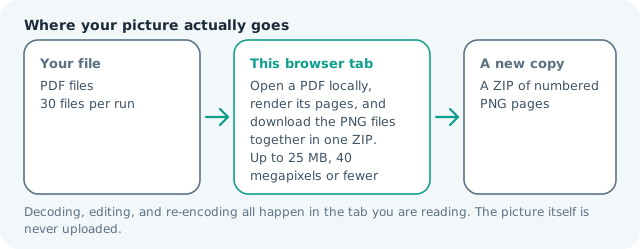
| Where the work happens | In this browser tab — the picture itself is never uploaded |
| Largest file | 100 MB, 40 megapixels or fewer |
| Largest batch | 30 files per run |
| Account, price, watermark | No sign-up, no charge, nothing stamped on your export |
When this helps
- Creating page previews for a document upload
- Turning a PDF slide deck into image files
- Extracting visual page snapshots for a project folder
- Preparing a single PDF page for an image editor
A five-page A4 PDF rendered at 1.5 scale produces five numbered PNGs in reading order. Increasing the scale improves pixel detail but also increases browser memory and ZIP size.
Detailed guidance
What PDF to image is for
PDF is excellent for preserving a page layout, but not every upload field, editor, or preview system accepts it. Rendering each page as a PNG makes the visual content portable to a slide, design board, thumbnail grid, or image-only workflow. The important distinction is that rendering preserves appearance, not the document's internal text and vector structure. A browser redraws pixels reliably; it cannot guess what a picture was meant to do. So the control below stays narrow, and the file it hands back is named for the job it did.
What happens in this browser tab
The local PDF engine reads the document bytes, opens each page, paints it onto a canvas at the selected scale, and encodes that canvas as PNG. The numbered PNGs are then stored in one ZIP so the page order is clear and the user does not receive a chain of separate browser download prompts. Nothing is sent to a remote converter. Nothing waits in a server queue, and the file you chose is never rewritten: you get a new copy with its own download link.
Limits that are part of the tool
The number of pages and selected scale are intentionally bounded by the browser's memory. A page rendered at 2x can use several times the memory of the original PDF, especially when it contains full-bleed images. Start at the default scale, lower it for previews, and keep the source PDF if print resolution is required. A decoded canvas costs several times its disk size in memory, which is why a slow phone should work in smaller batches or from a smaller source.
How to check the result before publishing it
Open the first, a middle, and the last PNG from the ZIP. Check that page numbers and orientation match the source, that small text is legible at the target display size, and that transparent or unusual PDF backgrounds look right. If the result will be edited, inspect edges at 100 percent before doing further work. Judge the download in the application that will receive it rather than in the preview here, and keep the original until you have.
Other jobs this page does
PDF pages to PNG, saving one PDF page as a picture, and turning a PDF into JPG are the same visual conversion. The image-to-PDF page is the reverse packaging step when your starting material is a group of pictures.
When another tool is the honest choice
This does not create JPGs, preserve selectable text, extract embedded photographs, or promise print-ready DPI metadata. It renders the page as a visual image. Use a dedicated PDF editor for page extraction and a text or image extractor for content that lives inside the PDF rather than on its rendered surface.
PDF to Image questions
Can I convert all PDF pages to images?
Yes. The browser renders the pages in order, names each PNG with its page number, and packs the results into one ZIP so a multi-page document is still a manageable download.
Why does PDF to image create PNG files?
PNG keeps text edges, diagrams, and flat graphics crisp after rendering. It is a practical neutral output for editing and previews; the original PDF is not changed.
Will the PNGs have searchable text?
No. Rendering converts the page into pixels. Use OCR or PDF text extraction when search, copy, and accessibility are more important than a visual snapshot.
Is the PDF uploaded while it is rendered?
No. A PDF renderer runs in your browser tab and the page bytes stay local. Large documents use memory, so lower the scale or process a smaller document if the device struggles.