
Local browser tool · Image Filter
Image Filter
Apply an image filter when a photo needs a quick warm, cool, sepia, monochrome, or high-contrast variation. ImageMunch changes the visible pixels in your browser and downloads a fresh copy, while the original remains clean. The presets are intentionally understandable and repeatable. They are broad screen-oriented effects, not a colour grading suite, selective object mask, or calibrated print conversion.
Try a quick colour effect on your photo
Choose a warm, cool, sepia, monochrome, or contrast preset and export locally. Suitable for image filter tasks on JPG, PNG, WebP, GIF, and BMP files; the export is always a new copy.
Click a thumbnail to preview it before you start.
These are the settings you last used for this tool. They stay in this browser and are never sent anywhere.
These are broad screen-oriented effects. Use a colour-managed editor for print-critical work.
Your files are read locally. Nothing is uploaded.
Your results
Pick a picture in the list to look at that file instead.
Full size
Actual pixels, straight from this browser — scroll to check edges and fine detail, then close.
Free to use. Local limits: up to 30 files, 100 MB per file, and 250 MB per batch, processed entirely in this browser. Nothing is uploaded; what stays on your device afterwards is the settings you last used and, after a run, the picture this page made so a next step can open it without choosing the file again. Start over deletes that picture.
Image Filter at a glance
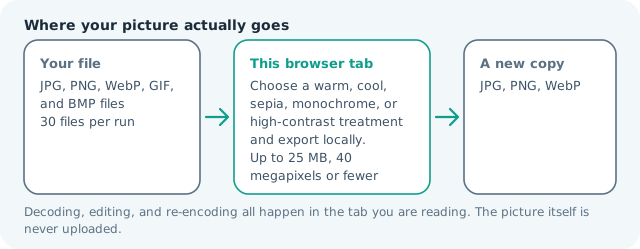
| Files it opens | JPG, PNG, WebP, GIF, and BMP files |
|---|---|
| Files you get back | JPG, PNG, WebP |
| Camera data (EXIF) | Not copied — this browser writes a fresh picture from its pixels, so GPS, timestamps and camera tags stay in the file you started with |
| Where the work happens | In this browser tab — the picture itself is never uploaded |
| Largest file | 100 MB, 40 megapixels or fewer |
| Largest batch | 30 files per run |
| Account, price, watermark | No sign-up, no charge, nothing stamped on your export |
When this helps
- Testing a colour mood for a social image
- Making a quick warm or cool photo variant
- Creating a sepia archive-style copy
- Checking a high-contrast treatment before editing further
Warm and cool adjust channel balance, sepia applies a brown-toned matrix, monochrome removes hue, and high contrast expands the distance between dark and light values. The canvas dimensions stay the same.
Detailed guidance
What Filter image is for
A filter is useful when the question is about overall mood rather than one isolated object. Warm and cool can test a campaign direction, sepia can suggest an archival treatment, monochrome can simplify a profile image, and high contrast can make a graphic feel more direct. Presets are valuable because the result is repeatable, but they should not be mistaken for a full colour workflow. A browser canvas is good at repeatable pixel operations and poor at reading intent, so the control below stays narrow and names its output honestly.
What the local engine changes
The page maps the selected preset to a deterministic channel treatment over the decoded canvas. Warm and cool adjust channel balance, sepia applies a brown-toned matrix, monochrome uses perceived luminance, and high contrast expands the distance between dark and light values. The output keeps the canvas size and is encoded in the format and quality chosen on the page. The file is decoded in this tab, transformed in memory, and encoded as a new download; the source is never overwritten.
Limits and output trade-offs
The normal 30-file, 100 MB-per-file, and roughly 40-megapixel limits apply. A filter does not automatically make a large camera original light enough for a website. Resize and compress the chosen variant when the destination cares about pixel dimensions or attachment weight, and remember that repeated JPG exports can compound loss. A compressed camera file can occupy many times its disk size once decoded, which is what the ceilings are there to protect.
How to check the download
Check skin tones, neutral backgrounds, text, and shadows in the result. A warm preset can colour a white background, while high contrast can remove detail from dark hair or black lettering. Review one output at full size before applying the same effect to an entire batch. These effects are exports, not reversible edits, so keep the source until the copy has been judged where it will be used.
Other jobs this page does
The photo-filter, image-colour-effects, and apply-filter searches describe this preset page. Change image color offers a chosen target hue, while posterize and grayscale make more structural changes to the pixel values. A preset is a starting point, not a house style, and the same setting can read very differently once skin tone or warm interior light is involved. When a preset is close but wrong, the colour page moves the image a smaller distance, and the grayscale page does the one job the presets cannot: removing hue without adding a cast.
When to use a stronger tool
This is not selective colour replacement, a LUT manager, a film emulation library, or proof of how a printed image will look. It applies one broad effect to the whole raster. Use a layered editor when different objects need different treatments.
Image Filter questions
Which filters can I apply to an image?
Choose warm, cool, sepia, monochrome, or high contrast. The selected effect is applied to each image you add and the result downloads as a new copy.
Can I filter several photos at once?
Yes. One selected preset is applied consistently to every file in the batch. Review one full-size result first when the images have different lighting or skin tones.
Are these filters suitable for print colour matching?
No. They are quick screen-oriented pixel effects. Use a colour-managed editor and proofing workflow for print-critical work, because this page does not manage profiles or ink limits.
Does the image filter upload my photos?
No. The filter runs in the current browser tab and the source files stay local. The result is encoded in memory and then offered as a download.