
Local browser tool · Posterize Image
Posterize Image
Posterize an image when smooth gradients need to become a smaller set of bold colour bands. ImageMunch limits the levels in each RGB channel locally and exports a new copy, so a photo can take on a graphic poster, screen-print, or limited-palette look. Choose more levels to preserve detail or fewer levels for a stronger effect. The source stays untouched and the result is clearly a stylised raster image rather than a traced vector.
Reduce colours for a bold poster effect
Choose the number of colour levels and export a graphic limited-palette copy. Suitable for posterize image tasks on JPG, PNG, WebP, GIF, and BMP files; the export is always a new copy.
Click a thumbnail to preview it before you start.
These are the settings you last used for this tool. They stay in this browser and are never sent anywhere.
Fewer levels create harder colour bands. Keep more levels for faces, skies, and shadows.
Your files are read locally. Nothing is uploaded.
Your results
Pick a picture in the list to look at that file instead.
Full size
Actual pixels, straight from this browser — scroll to check edges and fine detail, then close.
Free to use. Local limits: up to 30 files, 100 MB per file, and 250 MB per batch, processed entirely in this browser. Nothing is uploaded; what stays on your device afterwards is the settings you last used and, after a run, the picture this page made so a next step can open it without choosing the file again. Start over deletes that picture.
Posterize Image at a glance
| Files it opens | JPG, PNG, WebP, GIF, and BMP files |
|---|---|
| Files you get back | JPG, PNG, WebP |
| Camera data (EXIF) | Not copied — this browser writes a fresh picture from its pixels, so GPS, timestamps and camera tags stay in the file you started with |
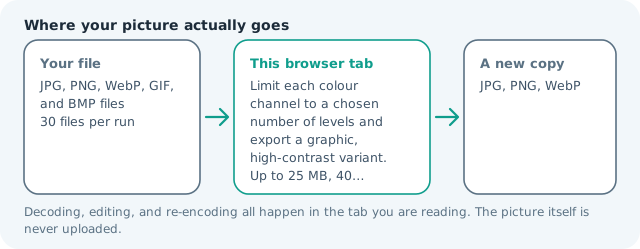
| Where the work happens | In this browser tab — the picture itself is never uploaded |
| Largest file | 100 MB, 40 megapixels or fewer |
| Largest batch | 30 files per run |
| Account, price, watermark | No sign-up, no charge, nothing stamped on your export |
When this helps
- Creating a bold poster or screen-print preview
- Reducing gradients for a craft reference
- Testing a limited-colour illustration style
- Making a photo variant with fewer tones
Six levels per RGB channel retain broad colour relationships while removing many subtle transitions. Two or three levels create a much flatter graphic and can lose facial or shadow detail quickly.
Detailed guidance
What Posterize image is for
Posterization changes the number of colour decisions in a picture. That can make a portrait more graphic, a texture easier to screen print, or a photo better suited to a bold visual system. It is not a quality improvement and it is not the same as compression: the point is a visible reduction in tones, not merely a smaller file. A browser canvas is good at repeatable pixel operations and poor at reading intent, so the control below stays narrow and names its output honestly.
What the local engine changes
The browser decodes the source and maps each RGB channel to the nearest permitted level. The canvas dimensions stay the same, while gradual changes in sky, skin, and shadow become larger bands. The result is encoded in the selected output format. Alpha remains unchanged where the format carries it. The file is decoded in this tab, transformed in memory, and encoded as a new download; the source is never overwritten.
Limits and output trade-offs
The local batch and memory limits remain 30 files, 100 MB per input, and about 40 megapixels per image. A low level count can expose banding that is intentional for the effect but unsuitable for a smooth photograph. Use more levels when the subject depends on subtle skin, sky, or shadow transitions, and compress or resize afterward if the destination has a byte cap. A compressed camera file can occupy many times its disk size once decoded, which is what the ceilings are there to protect.
How to check the download
Compare the output with the original at full size and at the final display size. Check faces, text, gradients, and transparent edges. A result can look strong as a thumbnail while losing important detail when opened. Keep the clean source so you can choose a different level count without stacking effects. These effects are exports, not reversible edits, so keep the source until the copy has been judged where it will be used.
Other jobs this page does
The posterize, reduce-colours, and limited-colour effect searches all fit this page. Pixel art reduces the spatial grid as well, while a filter changes the colour mood without deliberately quantizing every channel. Levels are applied per channel, so a low setting can split a smooth sky into bands that were never in the scene. That is the effect when you want it and the artefact when you do not, which is why the count is the only control here.
When to use a stronger tool
Posterization is not colour separation for professional printing, a vector conversion, a dithering engine, or an accessibility adjustment. It does not create editable colour layers or guarantee a specific ink result. Use a print-oriented application when the number of plates and colour profiles matter.
Posterize Image questions
What does posterize do to a picture?
It reduces the number of available levels in each colour channel, turning smooth gradients into broader bands and giving the image a graphic poster effect.
How many posterize levels should I choose?
Start around six levels for a visible but usable effect. Lower values create a flatter result and can remove facial or shadow detail quickly, while higher values retain more natural gradients and texture.
Is posterize the same as grayscale?
No. Posterize can keep several colours. Use the black-and-white page for continuous grayscale or use a very low level count for a limited monochrome style.
Does posterizing upload my image?
No. The colour reduction runs inside your browser and creates a new local file. The source stays on your device and is not added to a remote image queue.