
Local browser tool · Crop
Crop Image Online
Cropping an image keeps the part of a photo inside a frame you choose and discards everything outside it — no pixels inside the frame are degraded, so a crop never softens the picture. On this page the whole cut happens in your browser: pick 1:1, 4:5, 9:16, 16:9, or a free rectangle, drag the frame until the subject sits right, and download a full-resolution cropped copy while the original remains exactly as it was.
Cut the frame down to what matters
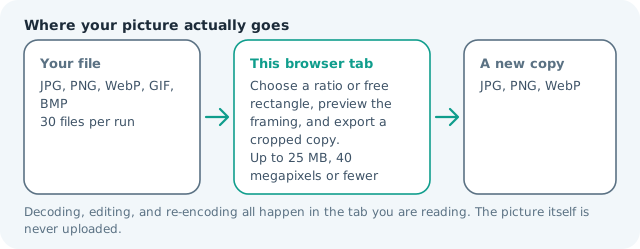
Choose a ratio or free rectangle, preview the framing, and export a cropped copy. Suitable for crop tasks on JPG, PNG, and WebP files; the export is always a new copy.
Click a thumbnail to preview it before you start.
These are the settings you last used for this tool. They stay in this browser and are never sent anywhere.
Drag the frame to choose the crop, pull its corner to size it, and the numbers below follow. The frame is the part you keep.
Estimated output —
Your files are read locally. Nothing is uploaded.
Your results
Pick a picture in the list to look at that file instead.
Full size
Actual pixels, straight from this browser — scroll to check edges and fine detail, then close.
Free to use. Local limits: up to 30 files, 100 MB per file, and 250 MB per batch, processed entirely in this browser. Nothing is uploaded; what stays on your device afterwards is the settings you last used and, after a run, the picture this page made so a next step can open it without choosing the file again. Start over deletes that picture.
Crop at a glance
| Files it opens | JPG, PNG, WebP, GIF, BMP |
|---|---|
| Files you get back | JPG, PNG, WebP |
| Camera data (EXIF) | Not copied — this browser writes a fresh picture from its pixels, so GPS, timestamps and camera tags stay in the file you started with |
| Where the work happens | In this browser tab — the picture itself is never uploaded |
| Largest file | 100 MB, 40 megapixels or fewer |
| Largest batch | 30 files per run |
| Account, price, watermark | No sign-up, no charge, nothing stamped on your export |
When this helps
- Squaring product shots for marketplace grids
- Portrait 4:5 or 9:16 crops for feed and story posts
- Trimming screen captures to just the relevant window
- Straightening a horizon with a landscape ratio crop
Measured on this page from the same 3,992 × 2,992, 3.55 MB photo: a 1:1 crop kept 2,992 × 2,992 and wrote 1.71 MB at quality 82, 4:5 kept the full height at 2,394 × 2,992 for 1.40 MB, and 16:9 kept the full width at 3,992 × 2,246 for 1.64 MB. The smaller 820 × 1,024 shot squared down to 820 × 820 and 109 KB. A crop throws pixels away rather than degrading them, so the weight tracks the area you cut, and the quality setting only decides how what is left is encoded.
Detailed guidance
Why cropping beats resizing for composition
A 12-megapixel photo cropped to half its width still holds three or four times the pixels any screen needs, so tightening the frame costs far less than stretching a bad composition to fit. Feed layouts reward this: a square grid slot or a 4:5 portrait post shows more subject detail when you crop deliberately than when a platform auto-cuts the center and decapitates the frame.
Ratio cheat sheet
1:1 covers profile pictures and classic grid posts. 4:5 is the vertical feed format that fills more screen than a square without a full story takeover. 9:16 is for stories, reels, and phone wallpapers. 16:9 and 3:2 suit hero banners and prints. A free crop is right when the subject touches edges and you need judgment over geometry — leave the horizon level and keep focal points away from the cut line.
Finishing a crop the reliable way
Before exporting, look at all four cut edges for accidentally halved objects, text, or a subject's eyeline; those mistakes are invisible in a zoomed preview. If the destination also caps file weight, send the cropped copy through the compressor next — cropping first keeps more detail per kilobyte because the encoder spends its budget entirely inside your frame.
Concrete crops people repeat
A marketplace listing wants a square with the product filling most of the frame, so crop to 1:1 and pull the subject away from the cut edges. A profile picture wants 1:1 but tighter still, because circular masks hide the corners and can clip a chin. Instagram feed posts look best at 4:5, stories at 9:16, and either crops a landscape shot heavily, so recompose rather than centre-cut. A wide photo from a tall travel shot becomes a 16:9 banner by cropping the lower third. Screenshots almost always need a free crop to trim browser chrome, then no resize at all. Each of these keeps full resolution inside the frame, which is why a deliberate crop beats an automatic one on every one of those surfaces.
Free framing versus fixed ratios
Free cropping offers control but most destinations want exact geometry, so a common mistake is a free crop that the platform then cuts again. The safe path: crop to the destination ratio, slightly larger than needed, then resize once to the exact pixel count. If you need several crops from one photo — square, portrait, wide — export all three now while the picture is open rather than revisiting the original later, and keep a comfortable margin, because rounded-corner masks and overlaid interface elements eat edges that looked safe in preview.
When a crop is the wrong tool
Crop cannot rescue a photo that is already too small, cannot straighten a badly tilted horizon without losing corner detail, and cannot invent a subject you never framed. If the real problem is file weight, compress instead; if it is dimensions, resize; if the edges need new content, that is generative work, not cropping. Picking the smaller operation keeps pixels you might otherwise throw away, and it usually produces a file that still looks like your original photograph rather than a shrunken version of one.
Crop Image Online questions
Does cropping reduce image quality?
No. Cropping removes the area outside your frame and leaves the pixels inside at native resolution, so nothing is resampled or softened. Quality only changes if you then resize or export at a lower setting, which is why a deliberate crop beats an automatic one.
Which crop ratios can I choose?
Free for anything judged by eye, then 1:1 for profile pictures and grid posts, 4:5 for feed posts, 9:16 for stories and phone wallpapers, and 16:9 and 3:2 for banners and prints. Choose the ratio the destination states, because a free crop usually gets cut again on upload.
How do I position the crop frame precisely?
Drag the rectangle across your picture to place it, or pull its corner to cut tighter, and the readouts below track every move. The two position sliders and the zoom control then nudge that same frame in single percentage steps, which is how you park a subject a safe distance from a cut line.
Should I crop before or after resizing?
Crop first. You choose what matters while the image is still large, and the later resize then spends every remaining pixel on the part you kept. Resizing first shrinks the whole frame, including the area you were about to throw away, and softens what survives.
What should I check before downloading a crop?
Look at all four cut edges for a half-cut object, clipped text, or an eyeline sitting on the line, because a zoomed preview hides exactly those mistakes. If the destination also caps file weight, send the crop through the compressor next, which keeps more detail per kilobyte.