
Local browser tool · Convert
Convert WebP to JPG
A downloaded WebP, and a desktop editor that refuses to open it: this page settles that argument. Drop the file here and your browser decodes it and re-encodes the pixels as JPG, so nothing uploads and no server holds the picture. WebP is now the default delivery format on a huge share of websites, which is exactly why the image you saved is the one your mail client, print shop, or upload form will not take.
Make a WebP readable everywhere
Decode the WebP and write the same pixels back out as a JPG, with the encoder quality left in your hands. Suitable for convert tasks on WebP, plus JPG, PNG, GIF, BMP, SVG, TIFF, HEIC and AVIF files; the export is always a new copy.
Click a thumbnail to preview it before you start.
These are the settings you last used for this tool. They stay in this browser and are never sent anywhere.
Pick the format every app accepts — the picture itself stays untouched.
Estimated output —
Your files are read locally. Nothing is uploaded.
Your results
Pick a picture in the list to look at that file instead.
Full size
Actual pixels, straight from this browser — scroll to check edges and fine detail, then close.
Free to use. Local limits: up to 30 files, 100 MB per file, and 250 MB per batch, processed entirely in this browser. Nothing is uploaded; what stays on your device afterwards is the settings you last used and, after a run, the picture this page made so a next step can open it without choosing the file again. Start over deletes that picture.
Convert at a glance
| Files it opens | WebP, plus JPG, PNG, GIF, BMP, SVG, TIFF, HEIC and AVIF files |
|---|---|
| Files you get back | JPG, PNG, WebP |
| Camera data (EXIF) | Not copied — this browser writes a fresh picture from its pixels, so GPS, timestamps and camera tags stay in the file you started with |
| This page is already set to | JPG output |
| What the new file keeps | Every pixel it can display — the same width, height and colours as on screen |
| What never carries over | Camera data and GPS, the colour profile (painted into plain sRGB), and animation, which exports as its first still frame |
| Transparent areas | Flattened onto the colour you pick — JPG has no alpha channel |
| Size after the change | Either way — both ends are lossy, so the quality slider decides more than the format does |
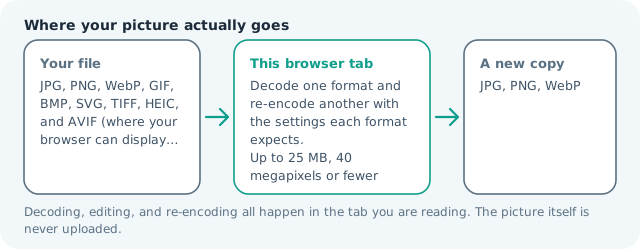
| Where the work happens | In this browser tab — the picture itself is never uploaded |
| Largest file | 100 MB, 40 megapixels or fewer |
| Largest batch | 30 files per run |
| Account, price, watermark | No sign-up, no charge, nothing stamped on your export |
When this helps
- A design program that greys out the Open command for WebP files
- Email attachments, where several desktop clients still strip WebP
- A print shop or photo lab that lists JPG as the only accepted upload
- Windows Explorer previews that show a blank tile for a saved WebP
Measured on this page: a 1,200 × 900 WebP of 86 KB returned a 138 KB JPG at quality 82. WebP packs a photograph more tightly than JPG at equal quality, so this conversion buys reach rather than lightness.
Detailed guidance
Where the WebP came from in the first place
Most people who search for this conversion did not choose the format. They right-clicked an image on a modern site, saved it, and ended up with a file their desktop software cannot open, because the site served WebP deliberately: it is usually a quarter lighter than the JPG it replaced, and that saving is worth real money in bandwidth to whoever runs the site. The mismatch is between the delivery format and the tool on your machine, not between two equally reasonable choices. Converting is therefore not a repair job on a broken file. The pixels are fine. It only has to be repackaged in a container your older software was ever taught to read.
What carries across and what does not
Pixel dimensions, colour and any visible detail transfer exactly, because the browser decodes the WebP first and only then re-encodes. What does not survive is the container itself: animated WebP comes back as a single still frame, transparency is flattened onto the background colour you choose, and any metadata the source carried is not rewritten into the new file. If the source is an illustration with flat colour and hard edges, a JPG will show faint ringing around those edges, so run a visual check at full zoom before you send the file anywhere that matters.
Picking a quality setting without guessing
Because the source is already lossy, the useful range is narrower than it looks. Anything at or above roughly 82 keeps a photograph indistinguishable from the WebP you started with on screen, and the number you are really buying with a higher setting is tolerance for a second round of editing later. If the destination is a form that states a size ceiling, convert first and compress second, so the encoder that has to hit the target is the last one to touch the file. If the destination is print, keep the setting high and let the file be heavy.
A workflow that survives real paperwork
Start from the largest copy you can get. A WebP pulled from a responsive site may be the small variant rather than the full asset, and no conversion recovers pixels that were never sent. Save it, open it once at one hundred percent to confirm it decoded cleanly, then run it through this page with the JPG preset already filled in. Rename the output before uploading it anywhere, because a generic filename is frequently rejected by the same portals that reject the format. Keep the original WebP in a folder rather than deleting it, since it is the lighter file and you may want to rebuild a bigger JPG from it later.
When JPG is genuinely the wrong answer
Two cases. If the picture must keep transparency, converting to JPG destroys the thing you were trying to preserve, so pick PNG instead and accept the extra weight. If the file is a screenshot of text, a line drawing, or a logo, JPG will soften the edges that carry the meaning, and a PNG keeps them razor sharp. Everything else, a photograph you intend to email, upload, or drop into a document, is exactly what JPG was designed for.
Convert WebP to JPG questions
Why does my saved WebP refuse to open?
The format is newer than the software. WebP shipped in browsers first, and desktop editors, image viewers, office suites and the built-in Windows preview lag behind it, sometimes by several versions. Saving a copy as JPG sidesteps the question, because JPG is the one format every program on a twenty-year-old machine can still read.
Does converting WebP to JPG lose quality?
You lose nothing that is visible at normal viewing distance, but you do pay twice: the WebP was already a lossy encode, and JPG compresses it again. Keep the quality slider near 85 rather than dragging it down, and work from the highest-resolution copy you can obtain rather than a thumbnail.
What happens to a transparent WebP?
JPG has no alpha channel, so any transparent area has to be flattened onto a solid colour before the file is written. This page lets you pick that colour instead of forcing white, which matters when the logo was cut out against a dark background. Choose PNG instead if the transparency has to survive.
Can I convert a whole folder of WebP files?
Add up to thirty files in one go and each one is processed separately, with its own byte count and download link in the result card. Everything is capped at 100 MB per file and about 40 megapixels, which covers any WebP a browser will hand you.