
Local browser tool · Convert
Convert PNG to WebP
Graphics are where this pair pays best: a transparent interface export or cut-out usually loses half its weight or more when you convert PNG to WebP, and the alpha channel survives, which no JPG route can promise. Add the images here and the browser rewrites them in your copy of WebP, locally, with no upload and no waiting. Every result prints its own size, so the saving is on screen before you download.
Shrink the graphics without erasing the alpha
WebP keeps transparency and encodes flat colour far more efficiently than PNG, so UI exports lose the most. Suitable for convert tasks on PNG, plus JPG, WebP, GIF, BMP, SVG, TIFF, HEIC and AVIF files; the export is always a new copy.
Click a thumbnail to preview it before you start.
These are the settings you last used for this tool. They stay in this browser and are never sent anywhere.
Pick the format every app accepts — the picture itself stays untouched.
Estimated output —
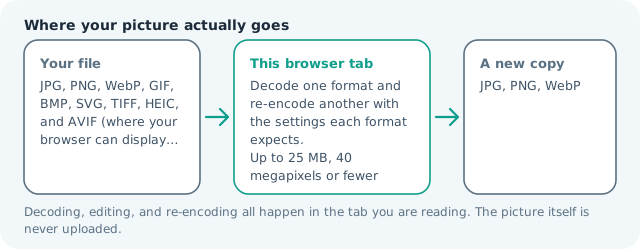
Your files are read locally. Nothing is uploaded.
Your results
Pick a picture in the list to look at that file instead.
Full size
Actual pixels, straight from this browser — scroll to check edges and fine detail, then close.
Free to use. Local limits: up to 30 files, 100 MB per file, and 250 MB per batch, processed entirely in this browser. Nothing is uploaded; what stays on your device afterwards is the settings you last used and, after a run, the picture this page made so a next step can open it without choosing the file again. Start over deletes that picture.
Convert at a glance
| Files it opens | PNG, plus JPG, WebP, GIF, BMP, SVG, TIFF, HEIC and AVIF files |
|---|---|
| Files you get back | JPG, PNG, WebP |
| Camera data (EXIF) | Not copied — this browser writes a fresh picture from its pixels, so GPS, timestamps and camera tags stay in the file you started with |
| This page is already set to | WEBP output |
| What the new file keeps | Every pixel it can display — the same width, height and colours as on screen |
| What never carries over | Camera data and GPS, the colour profile (painted into plain sRGB), and animation, which exports as its first still frame |
| Transparent areas | Kept: WebP stores an alpha channel, so a cut-out stays a cut-out |
| Size after the change | Usually much smaller, and the transparency carries across |
| Where the work happens | In this browser tab — the picture itself is never uploaded |
| Largest file | 100 MB, 40 megapixels or fewer |
| Largest batch | 30 files per run |
| Account, price, watermark | No sign-up, no charge, nothing stamped on your export |
When this helps
- Interface exports and badges that sit over coloured page sections
- Product cut-outs on a catalogue page with a busy background
- Icon sheets and illustrations that never needed full PNG
- A heavy landing page whose assets are all transparent PNGs
Measured on this page: a 900 × 600 PNG of 16 KB became a 6 KB WebP with its transparent background intact. Flat interface colour saves the most; dense photographic detail saves the least.
Detailed guidance
Where PNG wastes the most
PNG was designed for graphics that need every pixel exact, and it is genuinely good at that. What it is not good at is guessing: it refuses to discard anything, so an interface export with soft shadows, a badge with a gradient, or a screenshot with antialiased text pays for each of those subtle transitions in full. WebP is willing to approximate the parts of the image that a person does not examine, which is exactly what a shadow and a gradient are. The result is the same visual impression at a fraction of the storage, with transparency intact.
Which assets gain the most
Rank your folder by how much transition it contains rather than by pixel size. Screenshots of interfaces, cards with drop shadows, illustrations with soft blends, and cut-out product shots over gradient backgrounds all shrink hard. A pure one-colour shape with a hard edge is the outlier where PNG can still win, because there is nothing for WebP to approximate. This page arrives with WebP already chosen as the output, so the only decisions left to you are how hard to compress and whether to resize first, and each returned file prints its old and new byte counts side by side so the saving is something you read rather than something you trust. This is why converting one representative file and reading its real number beats applying a rule to the whole library.
Two settings that matter
Quality is the first: for UI exports, the range around 80 to 90 keeps edges clean, and dropping below that starts to make thin strokes look damp. The second is dimension, because WebP cannot make an oversized asset small. An interface export drawn at two times its display size should be resized before conversion, which usually saves more than the format change does. Do those two things in that order and a heavy hero graphic commonly falls below a tenth of its original weight.
Swapping the files into a project
Convert a batch, download with the names kept recognisable, then replace the references rather than deleting the PNGs, so a rollback is trivial. If your build serves assets through a bundler, the file hash changes and the cache invalidates itself; if it does not, remember that a CDN or a service worker can keep handing out the old heavy PNG long after you uploaded the WebP. Check one hard reload on a device you have already visited with, because that is where stale copies hide.
What to do with the lossless originals
Keep them. A WebP is a delivery file, and delivery files get re-exported whenever the design changes. Working from the lossless source each time avoids the slow drift where every export degrades the last. A simple folder habit, originals beside exports, means the next round of conversions starts from full quality and the assets do not need rebuilding from a screenshot.
Convert PNG to WebP questions
Does WebP keep transparency like PNG does?
Yes, and that is the main reason to prefer it over a JPG detour. Alpha is preserved, so a badge or cut-out still sits correctly on any background. What changes is only how efficiently the pixels and the alpha mask are stored, which is why the file comes back smaller.
How much weight should I expect to save?
On screenshots and flat graphics, often more than the photographic case: anywhere from a third to well past a half is normal. Rarely, a very simple one-colour shape can end up larger, so convert a sample, read the delivered size on the result card, and keep whichever file is lighter instead of assuming.
Will text still be crisp?
At sensible quality settings, yes, because WebP handles hard edges without the coloured ringing JPG introduces around them. If the asset is a logo or a text block that has to survive being zoomed, keep quality high or stay on PNG, which is the lossless reference.
Are there places WebP still fails?
Browsers handle it universally now. The stragglers are desktop mail clients and some older office and design software, which may not offer WebP on import or inlining. For a newsletter or a document, ship PNG or JPG and reserve the WebP copies for the web build.