
Local browser tool · Convert
Convert HEIC to JPG
iPhone photos arrive as HEIC, and Windows, Android, email forms and printers mostly do not open them. To convert a HEIC to JPG, drop the photo on this page: it decodes and re-encodes inside your browser, so nothing is uploaded. A small local decoder is fetched the first time you need one, the pixel dimensions and the quality you set are both kept, and what comes back is a normal JPG. Add up to thirty photos for a whole album.
Turn an iPhone HEIC into a JPG anything opens
The HEIC is decoded and re-encoded as JPG locally, one file or thirty, with the quality slider under your control. Suitable for convert tasks on HEIC and HEIF, plus JPG, PNG, WebP, GIF, BMP, SVG, and TIFF files; the export is always a new copy.
Click a thumbnail to preview it before you start.
These are the settings you last used for this tool. They stay in this browser and are never sent anywhere.
Pick the format every app accepts — the picture itself stays untouched.
Estimated output —
Your files are read locally. Nothing is uploaded.
Your results
Pick a picture in the list to look at that file instead.
Full size
Actual pixels, straight from this browser — scroll to check edges and fine detail, then close.
Free to use. Local limits: up to 30 files, 100 MB per file, and 250 MB per batch, processed entirely in this browser. Nothing is uploaded; what stays on your device afterwards is the settings you last used and, after a run, the picture this page made so a next step can open it without choosing the file again. Start over deletes that picture.
Convert at a glance
| Files it opens | HEIC and HEIF, plus JPG, PNG, WebP, GIF, BMP, SVG, and TIFF |
|---|---|
| Files you get back | JPG, PNG, WebP |
| Camera data (EXIF) | Not copied — this browser writes a fresh picture from its pixels, so GPS, timestamps and camera tags stay in the file you started with |
| This page is already set to | JPG output |
| What the new file keeps | Every pixel it can display — the same width, height and colours as on screen |
| What never carries over | Camera data and GPS, the colour profile (painted into plain sRGB), and animation, which exports as its first still frame |
| Transparent areas | Flattened onto the colour you pick — JPG has no alpha channel |
| Size after the change | Larger: HEIC is the tighter encoder, and the JPG is bought for reach, not weight |
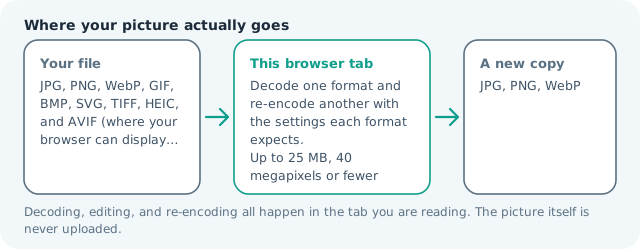
| Where the work happens | In this browser tab — the picture itself is never uploaded |
| Largest file | 100 MB, 40 megapixels or fewer |
| Largest batch | 30 files per run |
| Account, price, watermark | No sign-up, no charge, nothing stamped on your export |
When this helps
- iPhone photos a Windows mail client or a web form rejects
- Passport, visa, and application portal uploads that demand JPG
- Sharing a camera-roll picture with an Android contact
- Turning a whole HEIC album into files a printer accepts
Measured on this page: a 2.86 MB HEIC from a 12-megapixel phone camera came out as a 2.41 MB JPG and a 1.83 MB WebP, both still 3,992 × 2,992. The first HEIC in a fresh tab pays for the decoder as well — 27.4 seconds on that run against 9.9 seconds for the next file in the same tab. Going the other way is the trap worth naming: the same 3.55 MB photo converted to PNG weighed 24.61 MB afterwards, because PNG keeps every pixel.
Detailed guidance
Why HEIC needs converting at all
HEIC is the container Apple adopted in 2017 because it stores roughly half the bytes of a comparable JPG, and iOS has saved photos that way ever since. The compression is genuinely better; the acceptance is not. Windows Explorer wants an extension installed, Android support varies by version and handset, and a long tail of web forms, printers, banking apps, and chat clients simply refuse the file. Converting to JPG gives you the one format almost every device made in the last thirty years can open, which makes it the export to choose whenever a photograph has to leave your hands.
What conversion does to quality and metadata
The HEIC is decoded and its pixels are re-encoded under JPG rules, so dimensions carry over while the file gains weight — the efficiency is precisely what you are trading for compatibility. Nothing is upscaled, stretched, or cropped, and the quality setting stays yours, so a high value looks the same as the preview. Two details deserve knowing before you rely on the result. A Live Photo exports as its still frame, because the video half lives in a separate file no image converter can reach. And the EXIF block goes with it: the converted JPG holds the picture and the pixel size, not the camera serial number or the GPS coordinates your phone quietly wrote into every shot, which is usually the outcome people hoped for once they learned it was there.
Getting the file off the iPhone
Three routes work. AirDrop or the Photos share sheet to a Mac hands over the HEIC unchanged, and this page converts it there. iCloud.com offers an unmodified original, which is HEIC, and a compatible version, which is already JPG but resized on the way out. The transfer setting under Settings on the phone itself converts automatically, and it is the least predictable option of the three because a compatible copy has often been scaled down too. If a file reached you by email, it may already be a JPG wearing a heic-ish name; the dropzone only accepts what the decoder can actually read, so an unexpected result usually means the source was never HEIC to begin with.
Running a whole album at once
Add up to thirty photos in one pass and each returns as its own JPG with its own size line, so the single frame that failed to decode is obvious rather than buried. Because the work happens on your device, the ceiling is available memory instead of an upload queue: a heavy run on an older handset is slow rather than blocked, and nothing queues behind another visitor. The decoder downloads once and the browser keeps it, so the second album opens faster than the first. Name exports as they land — a downloads folder holding thirty files called IMG_4120.jpg is unresolvable next month, and the original HEIC is still the best copy you own.
When PNG or WebP is the better answer
JPG is the compatibility pick, not always the right file. A HEIC screenshot full of text wants PNG, which keeps glyph edges crisp instead of softening them with chroma subsampling. A web photo whose audience uses current software wants WebP, which hands back most of the size you just traded away. Both are one dropdown away on this page, and every run writes a new copy so the source stays untouched — worth remembering, because that untouched original is what you re-export from next year when the platform rules change again.
Convert HEIC to JPG questions
Is it safe to convert personal photos here?
Yes. Decoding and re-encoding both run inside this browser tab, so there is no upload step, no server holding your images, and nothing to delete afterwards. Close the tab and the working copies leave your machine's memory with it.
Why does the converted JPG weigh more than the HEIC?
HEIC uses a newer, denser compression than JPG, so a comparable-quality JPG typically comes out 30 to 80 percent heavier. That growth is the trade you are making: bytes in exchange for a file every device opens. Nudge the quality slider down if the weight matters more than the last detail.
Can I convert a Live Photo?
The still frame converts, which is what a JPG needs. The short video inside a Live Photo is a separate MOV that this tool does not touch, so export that as a video from the Photos app instead.
Do I need to install or download anything?
Nothing you have to find yourself. The first HEIC you add fetches a small local decoder and your browser caches it, so later conversions on the same machine start immediately. If that fetch fails, the page says so rather than pretending to work.
Will the JPG keep the photo's GPS location?
No. Re-encoding writes a clean JPG holding the picture and its dimensions, and the EXIF block that carried camera settings and GPS coordinates does not survive. Keep the HEIC if you need the geotag; most recipients are glad it is gone.