
Local browser tool · Compress
Compress JPG to 100KB
A hundred kilobytes is the ceiling most portals quote per attachment. To compress a JPG to 100 KB, set this page's target to 100 KB and drop the photo in: the tool re-encodes the file in your browser, stepping the quality down until the result lands at or just under your limit, and lowering the frame size too when quality alone cannot get there, then shows the exact byte count and the dimensions it delivered before you download. You never guess at a slider, because the target is already fixed.
Land a JPG on a 100 KB ceiling
Type 100 KB as the target and the encoder searches for the heaviest setting that still fits. Suitable for compress tasks on JPG, PNG, and WebP files; the export is always a new copy.
Click a thumbnail to preview it before you start.
These are the settings you last used for this tool. They stay in this browser and are never sent anywhere.
Estimated output —
Your files are read locally. Nothing is uploaded.
Your results
Pick a picture in the list to look at that file instead.
Full size
Actual pixels, straight from this browser — scroll to check edges and fine detail, then close.
Free to use. Local limits: up to 30 files, 100 MB per file, and 250 MB per batch, processed entirely in this browser. Nothing is uploaded; what stays on your device afterwards is the settings you last used and, after a run, the picture this page made so a next step can open it without choosing the file again. Start over deletes that picture.
Compress at a glance
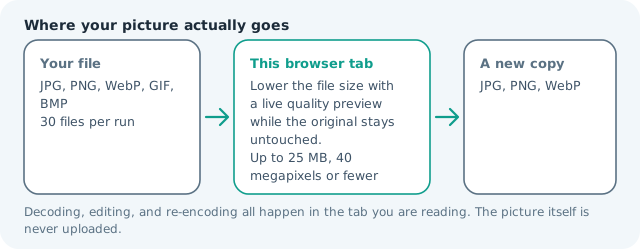
| Files it opens | JPG, PNG, WebP, GIF, BMP |
|---|---|
| Files you get back | JPG, PNG, WebP |
| Camera data (EXIF) | Not copied — this browser writes a fresh picture from its pixels, so GPS, timestamps and camera tags stay in the file you started with |
| This page is already set to | JPG output, 100 KB target |
| Where the work happens | In this browser tab — the picture itself is never uploaded |
| Largest file | 100 MB, 40 megapixels or fewer |
| Largest batch | 30 files per run |
| Account, price, watermark | No sign-up, no charge, nothing stamped on your export |
When this helps
- Job and exam portals that reject attachments above 100 KB
- Government and visa forms with per-file caps stated in kilobytes
- Listing sites that allow only a light first photo
- Email signatures and forms where a 100 KB image keeps the message under quota
Measured on this page: a 1,200 × 900 photo that arrived at 372 KB came back at 97 KB against the 100 KB target, still 1,200 × 900, with the encoder settling on quality 64 to fit underneath.
Detailed guidance
Why 100 KB keeps appearing as a limit
One hundred kilobytes is the quiet default of a hundred systems written over twenty years: application portals, form builders, CMS upload handlers, and email gateways that assume a photo should be light enough to travel fast on hotel wifi. The cap is rarely explained on the page that enforces it, which is why the most common failure looks like a silent reject button rather than an error message. Treat 100 KB as a budget rather than a punishment. You get to decide where the bytes go: fewer pixels and a gentler encoder usually beats one huge image squeezed to breaking point.
A routine that survives strict forms
Start by resizing the photo to the largest dimensions the destination accepts, because pixel count costs more than encoding quality does. A portrait for an application rarely needs more than 600-800 px on the long edge. Then run it through this page with the 100 KB target preset already filled in. Open the result at full size and look specifically at faces, small text, and the horizon line; those reveal over-compression first. If anything looks wrong, go back a step and resize a little more rather than pushing the encoder further. Keep the file named for its purpose before you upload, since some systems bounce generic names and a clear filename helps a human reviewer if the application is queried later.
Reading the result honestly
The card shows the delivered byte count, not an estimate, so you can trust it against a stated limit. If the result lands far below the ceiling — 40 KB where 100 KB was allowed — the photo had little detail to encode, which is normal for flat graphics and screenshots. If it stops above the target, the tool has run out of acceptable settings and the honest fix is fewer pixels rather than a second pass. Repeatedly re-saving a JPG compounds generation loss, so always work from the cleanest source you have instead of compressing an already-compressed export.
Privacy is the quiet advantage
Documents that pass through a web compressor often linger in temporary storage, get logged, or are cached by third-party CDNs on their way back to you. A local canvas never has those failure modes: the file is decoded in memory, redrawn, and exported as a new copy in your downloads folder. That also means no queue and no upload throttle, so thirty forms worth of photos take seconds rather than minutes, and the work still finishes on a bad connection.
When a photo refuses to fit
Some subjects fight a 100 KB ceiling harder than others: a crowded street, foliage, a shot of a television screen, or a photo that carries small text. When the search runs out of acceptable settings, do not rerun it — reduce pixels by roughly a fifth and try once more, because structure costs more bytes than smooth areas do. Two other adjustments work at this weight. Crop out dead space so the encoder spends its budget on the subject, and switch a purely graphic image to PNG when it contains large flat colours, which pack better than JPG ever does. Portraits should keep resolution and accept a softer encode; text images should keep detail and accept more plain area around them.
Compress JPG to 100KB questions
How do I make a JPG exactly 100KB?
Set the target on this page to 100 KB and run the file. The tool tries progressively lighter encodes and stops at the heaviest setting that still fits, so you land at or just under 100 KB rather than over. Download and check the printed byte count before uploading to be sure.
Will a 100 KB JPG still look acceptable?
For a normal photo resized to about 1,200-1,600 px on its long edge, 100 KB is comfortable and artifacts stay hard to see. A 12-megapixel original forced down to 100 KB will show softness in fabric and sky, so resize first if the destination allows it.
What if my photo cannot reach 100 KB?
Very large, detail-heavy images sometimes stop above the target because the encoder has no lighter setting left that holds together. The result card tells you when the floor was exceeded; shrink the dimensions on the resize page first, then run it here again.
Is it safe to upload an ID photo for this?
Nothing is uploaded. Your browser decodes the file, redraws it on a local canvas, and hands back a new copy, so identity documents and statements never leave the device or sit on a server.