
Local browser tool · Compress
Compress JPG to 200KB
Two hundred kilobytes is the listing and submission budget that shows up most often, and a normal photo loses almost nothing visible at that weight. To compress a JPG to 200 KB, drop it here with the target already set: the page re-encodes the picture locally, stepping quality until the byte count clears the limit, and prints the real size before you save. No slider guessing, and no upload either.
Fit a JPG inside 200 KB
A 200 KB budget with the encoder doing the search, so you never tune a slider by eye. Suitable for compress tasks on JPG, PNG, and WebP files; the export is always a new copy.
Click a thumbnail to preview it before you start.
These are the settings you last used for this tool. They stay in this browser and are never sent anywhere.
Estimated output —
Your files are read locally. Nothing is uploaded.
Your results
Pick a picture in the list to look at that file instead.
Full size
Actual pixels, straight from this browser — scroll to check edges and fine detail, then close.
Free to use. Local limits: up to 30 files, 100 MB per file, and 250 MB per batch, processed entirely in this browser. Nothing is uploaded; what stays on your device afterwards is the settings you last used and, after a run, the picture this page made so a next step can open it without choosing the file again. Start over deletes that picture.
Compress at a glance
| Files it opens | JPG, PNG, WebP, GIF, BMP |
|---|---|
| Files you get back | JPG, PNG, WebP |
| Camera data (EXIF) | Not copied — this browser writes a fresh picture from its pixels, so GPS, timestamps and camera tags stay in the file you started with |
| This page is already set to | JPG output, 200 KB target |
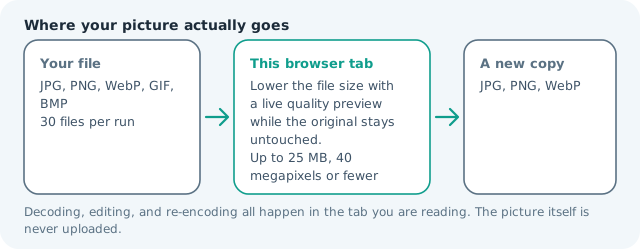
| Where the work happens | In this browser tab — the picture itself is never uploaded |
| Largest file | 100 MB, 40 megapixels or fewer |
| Largest batch | 30 files per run |
| Account, price, watermark | No sign-up, no charge, nothing stamped on your export |
When this helps
- Marketplace listing images capped per photo
- Tender, admission, and scholarship document uploads
- Website content managers with a 0.2 MB asset rule
- Insurance claim photos that must stay light enough to batch
Measured on this page: a 1,200 × 900 photo that arrived at 372 KB landed at 192 KB against the 200 KB target with its frame untouched, because a lighter squeeze was not needed and the search stopped at quality 89.
Detailed guidance
What a 200 KB budget actually buys
Two hundred kilobytes is generous compared with a 100 KB ceiling: it leaves the encoder enough room to hold skin tones and edges cleanly at typical web dimensions, which is why so many listing and submission systems settle on it. In practice a 200 KB image at around 1,600 px looks indistinguishable from the original on any phone screen and most laptops, and loads in a fraction of a second on mobile data. The number is a budget, not a quality verdict. Spend it on the dimensions the destination actually displays rather than on pixels nobody renders, and the result looks better than a huge file squeezed into the same weight.
Where the limit usually comes from
Content management systems often impose 0.2 MB per image because editors upload thousands of assets and hosting bills scale with storage. Insurance and claims systems impose it because adjusters receive hundreds of photos per file. Ad networks impose it because creatives download on mobile networks. None of these limits care about your camera, and each of them accepts a modest resize far more happily than a heavy re-encode. Read the requirement as a shape: a long-edge dimension plus a byte cap. Fix the dimensions first with the resizer, then let this page hit the byte target, and both constraints are satisfied without visible damage.
Batch habits that save an afternoon
You can add up to thirty files at once, so group the work by destination rather than by date. Ten claim photos for the same insurer all share one ceiling, and one run produces ten results with printed sizes you can scan in seconds. Name exports consistently before uploading, because a review queue with generic filenames slows everyone down. Keep the untouched originals in a folder somewhere; the compressed copy is a delivery artefact, not the master, and having the master available is what lets you re-export at a different size next quarter without a reshoot.
Checking the result before you submit
Open the exported file once and inspect the three places compression fails first: text edges, fabric or hair detail, and smooth gradients such as skies. If any of those look blocky or banded, back off by shrinking dimensions rather than raising quality, then rerun. The card reports the delivered byte count, so there is no need to guess whether the form will accept it. If it clears, stop editing — every additional JPG save costs detail that no setting can bring back.
What the same budget does to different photos
Two hundred kilobytes behaves very differently depending on what the camera saw. A phone portrait typically reaches it with no visible cost, because the encoder discards chroma detail the eye barely tracks. A night scene does worse: grain is expensive, and a file that looks clean on a monitor can turn blocky on a phone at full screen. Flat art and screenshots land far below the cap, which surprises people expecting a fixed output weight. Knowing the category saves iterations — if a textured shot will not settle, shrinking dimensions before compressing gives a much better result than pushing quality down a second time.
Compress JPG to 200KB questions
How do I reduce a JPG to 200KB?
Leave the preset target at 200 KB and add the file. The tool encodes repeatedly, halving the quality gap each time, and stops at the heaviest setting that stays at or below the limit. The exact delivered size appears in the result card.
Is 200 KB enough quality for a listing photo?
Usually yes. A 1,600 px photo at 200 KB looks clean on a phone and in a grid thumbnail, and buyers zoom far less often than sellers assume. If your product has small printed text, shoot that detail as a second photo instead of raising the whole file.
Why did my file come out bigger than 200 KB?
With JPG or WebP it should not: the encoder spends pixels before it gives up. Two cases stay over the line — PNG output, which has no quality lever, and a frame too detailed to shrink below about 240 px.
Does this work on a phone?
It runs in the mobile browser, so camera-roll photos can be compressed without installing an app. Very large files are limited by device memory rather than by any account tier, and nothing is uploaded either way.