
Local browser tool · Blur & pixelate
Blur a Face in a Photo
To blur a face in a photo, press Find faces automatically and this page draws a rectangle around each person the detector recognises, then drag boxes over anyone it missed. Raise the strength until eyes and mouth stop resolving. The detector runs on your own canvas inside the browser tab, so the bystanders in your picture are never transmitted on the way to being protected, and every box stays editable before a single pixel is written.
Cover each face with a rectangle of soft pixels
Press the finder and this page draws a box around every face it recognises, or drag one yourself, then it smears the pixels inside each box at a strength that scales with your image resolution rather than a fixed pixel count. Suitable for blur & pixelate tasks on JPG, PNG, WebP, GIF, and BMP files; the export is always a new copy.
Click a thumbnail to preview it before you start.
These are the settings you last used for this tool. They stay in this browser and are never sent anywhere.
Drag a rectangle over each face, plate, or line of text. The preview shows the effect you are about to export at full resolution.
The first press loads a face detector into this tab and keeps it there. It frames the face, not the hair or the chin, so check the boxes before you export.
A flat bar is the only setting that guarantees nothing shows through — a weak blur can be sharpened back.
Your files are read locally. Nothing is uploaded.
Your results
Pick a picture in the list to look at that file instead.
Full size
Actual pixels, straight from this browser — scroll to check edges and fine detail, then close.
Free to use. Local limits: up to 30 files, 100 MB per file, and 250 MB per batch, processed entirely in this browser. Nothing is uploaded; what stays on your device afterwards is the settings you last used and, after a run, the picture this page made so a next step can open it without choosing the file again. Start over deletes that picture.
Blur & pixelate at a glance
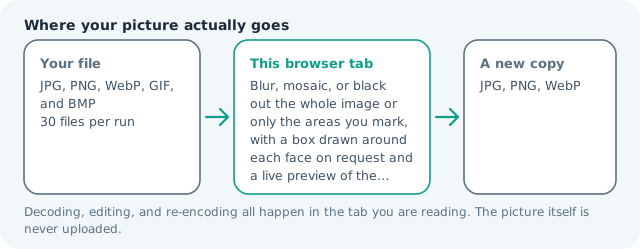
| Files it opens | JPG, PNG, WebP, GIF, and BMP |
|---|---|
| Files you get back | JPG, PNG, WebP |
| Camera data (EXIF) | Not copied — this browser writes a fresh picture from its pixels, so GPS, timestamps and camera tags stay in the file you started with |
| Where the work happens | In this browser tab — the picture itself is never uploaded |
| Largest file | 100 MB, 40 megapixels or fewer |
| Largest batch | 30 files per run |
| Account, price, watermark | No sign-up, no charge, nothing stamped on your export |
When this helps
- An event, race, or market photo where bystanders never agreed to be published
- A class or team picture cleared for some faces but not every one
- A portfolio before-and-after that must keep its composition and drop identity
- A first pass that boxes every detected face before you add the missed ones by hand
Work down the frame in the order your eye naturally travels: the main subject first, then bystanders at the edges, then anyone half-hidden behind a shoulder, because those are the faces people later complain about. For scale, measured on this engine with the effect over an entire 3,992 × 2,992 frame of 3.55 MB: blur at strength 16 left a 388 KB JPG and mosaic left 180 KB. Covering two faces instead of the frame keeps most of the picture, and most of its weight.
Detailed guidance
What the face finder marks, and what stays your job
Press the button and a small detector reads the picture inside your browser tab, then puts a box around each face it recognises. Nothing is uploaded to make that happen, and the boxes it produces are the same editable rectangles you would have dragged yourself, so the finder is not a different kind of redaction but a faster start at one. What it cannot promise is completeness. Detectors miss the child half behind a doorframe, the profile at the edge of a market stall, and the face in a car window, and each miss is the exact problem you were trying to avoid. So the finder is the first pass and your eyes are the second: it removes the twenty drags a busy frame costs, and you keep the part that matters, which is having personally looked at every face before a single pixel is written.
Choosing a strength that actually hides
A blur works by averaging neighbours, so what disappears is detail at a scale smaller than the radius, and what survives is the shape. A soft pass leaves the hairline, the sense of a face looking at you, and the impression of an expression. The strength control on this page scales with the size of your image rather than with fixed pixels, which matters because 20 pixels of radius is invisible on a phone screenshot and enormous on a camera original. Raise it until the eyes and mouth stop resolving. If you find yourself hovering over a face to work out who it might be, go higher, or reach for the solid bar instead.
A practical pass over a busy frame
Let the finder mark what it can, then start with the subject your eye lands on and sweep the frame from left to right along the third where bystanders usually sit, checking the two places people forget: the far edge of the scene and the background behind the main subject. Zoom out before you export and look once more, because small faces are the ones that slip through at full zoom. Boxes can overlap freely and the effect is applied once per region, so generous boxes cost nothing except visual tidiness.
What a blurred face still gives away
Be clear about the ceiling. Clothing, body shape, hair, skin tone, the shop behind them, the timestamp in your metadata, and the fact that they were in that place are all untouched. Blur stops a stranger glancing at a feed; it does not stop someone who already knows the person. For anything where recognition itself is the harm, use the black or white bar, or crop the person out of the frame entirely and lose the shot rather than shipping a weak edit.
Export settings that keep the edit clean
Boxes are where a compression artefact shows first, because the boundary between sharp and smeared is an edge, and edges are what low quality JPEGs damage. Set the quality slider near the top, or choose PNG when the photo is small or graphic. Then open the downloaded file, not the preview, and check the box edges at one hundred percent. If the outline of a face is sitting inside a crisp halo, the box was too tight, and the fix is a bigger box rather than a stronger blur.
Blur a Face in a Photo questions
Does this find the faces for me?
Yes. Press Find faces automatically and a box appears around each face the detector recognises, drawn by a model that runs in your browser and not on a server. Treat it as a first pass: it misses faces in profile, behind a hand or mask, and below roughly a tenth of the frame, so sweep the picture yourself and drag rectangles over the rest.
How strong does the blur need to be?
Enough that eyes, mouth, and the outline of the head stop being readable at the size you are publishing. As a working rule, set the strength so one blurred region is roughly the width of the face itself. Around 30 on this slider handles most camera originals; small faces in a wide street shot need a bigger box rather than a bigger number.
Is a blurred face legally anonymous?
Not reliably. A picture of an identifiable person can be personal data even softened, because posture, clothing, context, and the surrounding scene all remain. Treat blur as reducing casual recognition, and if the photo is going into a commercial use where someone objected, remove the person from the frame instead of softening them.
Can I blur a group photo quickly?
Press the finder once and the boxes appear without dragging; add rectangles where it missed, and every box is painted in the same run. A wide scene with dozens of tiny bystanders is the honest exception, because that is where the finder is weakest, so cropping the frame can still beat twenty boxes.
Will blurring ruin the rest of my picture?
Nothing outside your boxes is touched; it is re-encoded once at the quality you pick. Save as PNG, or at the top of the quality range, if the photo is going to be printed or posted at full resolution, because encoder softening around box edges is what makes an edit look pasted on.