
Local browser tool · Add a Border
Round Image Corners
Rounded corners read as deliberate because nothing in a camera or a screenshot produces them. Set a radius and the page curves all four corners in one pass at your picture’s full resolution, then exports a PNG or WebP with the cut-away corners left genuinely transparent, so the shape survives on any background you drop it on. A JPG has no alpha channel, so on that format you choose the colour the corners are filled with instead.
Round the four corners in one pass
Apply a smooth corner radius at full resolution and keep the cut corners transparent in PNG and WebP. Suitable for add a border tasks on JPG, PNG, WebP, GIF, and BMP files; the export is always a new copy.
Click a thumbnail to preview it before you start.
These are the settings you last used for this tool. They stay in this browser and are never sent anywhere.
Everything is drawn once at full resolution, so the curve stays clean when you zoom in instead of showing a staircase. PNG and WebP keep the cut corners transparent; JPG fills them with the colour above.
Your files are read locally. Nothing is uploaded.
Your results
Pick a picture in the list to look at that file instead.
Full size
Actual pixels, straight from this browser — scroll to check edges and fine detail, then close.
Free to use. Local limits: up to 30 files, 100 MB per file, and 250 MB per batch, processed entirely in this browser. Nothing is uploaded; what stays on your device afterwards is the settings you last used and, after a run, the picture this page made so a next step can open it without choosing the file again. Start over deletes that picture.
Add a Border at a glance
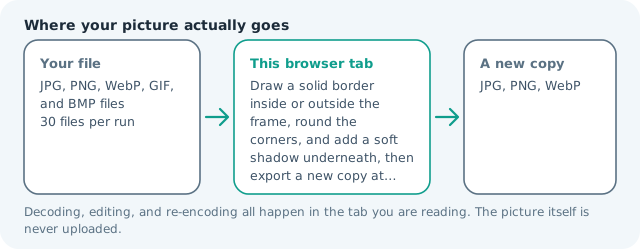
| Files it opens | JPG, PNG, WebP, GIF, and BMP files |
|---|---|
| Files you get back | JPG, PNG, WebP |
| Camera data (EXIF) | Not copied — this browser writes a fresh picture from its pixels, so GPS, timestamps and camera tags stay in the file you started with |
| This page is already set to | PNG output |
| Where the work happens | In this browser tab — the picture itself is never uploaded |
| Largest file | 100 MB, 40 megapixels or fewer |
| Largest batch | 30 files per run |
| Account, price, watermark | No sign-up, no charge, nothing stamped on your export |
When this helps
- A card image that has to match the rounded panels around it on the page
- Profile pictures and avatars, where square corners are the only thing wrong with the file
- Screenshots dropped into slides, where a hard corner fights every other shape on the deck
- Product thumbnails that sit on a coloured background and must not show a white box
The radius is measured against the shorter edge, so 20 percent on a 1,000 × 600 picture curves each corner with a 120 px radius, and the same 20 percent on a 600 × 1,000 portrait gives the identical 120 px curve. That is what keeps a batch of mixed sizes looking like one family.
Detailed guidance
Why the curve is calculated, not scaled
A rounded corner is an arc, and an arc drawn once at the picture’s own resolution stays smooth when you zoom in. The shortcut most tools take is rounding a small copy and stretching the result, which produces a stair-step edge exactly where the eye is looking for quality. Here the radius is worked out against the full frame and the path is drawn at that size, so the edge is as clean as the rest of the file. That matters most on flat graphics and screenshots, where there is no photographic noise to hide a rough curve behind.
What transparency is really for
A rounded PNG is a shape. A rounded JPG is a picture with four small coloured triangles stuck on it. The difference only appears when the file leaves this page: on a white background both look identical, and on a coloured one the JPG shows a box that was never part of the design. This is also why the corner matte is offered only when the format you chose actually needs it.
Picking a radius that survives being resized
A fixed pixel radius looks different on every file, which is why a batch done at 40 px produces tight curves on thumbnails and almost nothing on a large hero image. Measuring the radius as a share of the shorter edge keeps the proportion, so the same setting on a 400 px avatar and a 2,400 px product shot reads as the same decision. If a design system specifies a pixel value, work out what share that is of the image you have and set that instead.
Where rounding hurts
Anything with information in the corners loses it: timestamps, page numbers, watermarks, small captions, and the edges of tables in screenshots. Faces pushed into a corner get clipped in ways that look worse than a square frame. And app icons are their own trap — most stores mask icons themselves, so a pre-rounded icon ends up double-rounded with a visible halo. When a store asks for a square icon, send it a square icon.
What this page will not do
It draws four identical corners on a rectangle. It does not produce circles, squircles, organic blobs, or a shape that follows the outline of your subject — that is a cutout job, and there is a page here for it. Nor does it round the corners of a JPG while keeping them transparent, because that combination does not exist in the format.
A radius is a proportion, so the same setting leaves different amounts of the picture intact on a 400 px avatar and a 2,400 px hero. Judge the curve at the size people will actually see, and remember that whatever is drawn into the outer corner is what disappears first.
Round Image Corners questions
Do rounded corners make the image transparent?
In PNG and WebP, yes: the corner pixels are removed, and the picture shows whatever background it is placed on. A JPG has no alpha channel at all, so the corners are filled with the colour you choose on the page, and picking white is what makes a rounded JPG look square on a coloured page.
How round should the corners be?
Under 10 percent of the shorter edge reads as a refinement; 15 to 25 percent reads as a deliberate shape; beyond that you are making a circle out of a rectangle and the picture starts to lose its corners as information. For an avatar, aim high and check that faces and logos survive the crop.
Will this crop my photo?
It removes the corner areas and nothing else. The width and height stay exactly as they were, so an image with important detail right in a corner, like a timestamp or a page number, loses it. Move that detail or use a smaller radius.
Can I round the corners of many images the same way?
Yes. Add up to thirty files and the same percentage radius is applied to each, which is the point of measuring against the shorter edge rather than a fixed pixel count. Mixed portrait and landscape files come out looking like they belong together.