
Local browser tool · Add a Border
Add a Border to an Image
A border is the cheapest way to make an image look finished, and the only tool you need is one that draws it at full resolution instead of stretching your picture to make room. Pick a width, a colour, and whether the frame sits outside the artwork or over its edge. The page then paints the whole thing in one pass on your device and hands back a new file, so the frame stays as sharp as the photo inside it.
Put a frame around the picture
Add a solid border outside the artwork or drawn over its edges, at any width up to 200 px, and export a new copy. Suitable for add a border tasks on JPG, PNG, WebP, GIF, and BMP files; the export is always a new copy.
Click a thumbnail to preview it before you start.
These are the settings you last used for this tool. They stay in this browser and are never sent anywhere.
Everything is drawn once at full resolution, so the curve stays clean when you zoom in instead of showing a staircase. PNG and WebP keep the cut corners transparent; JPG fills them with the colour above.
Your files are read locally. Nothing is uploaded.
Your results
Pick a picture in the list to look at that file instead.
Full size
Actual pixels, straight from this browser — scroll to check edges and fine detail, then close.
Free to use. Local limits: up to 30 files, 100 MB per file, and 250 MB per batch, processed entirely in this browser. Nothing is uploaded; what stays on your device afterwards is the settings you last used and, after a run, the picture this page made so a next step can open it without choosing the file again. Start over deletes that picture.
Add a Border at a glance
| Files it opens | JPG, PNG, WebP, GIF, and BMP files |
|---|---|
| Files you get back | JPG, PNG, WebP |
| Camera data (EXIF) | Not copied — this browser writes a fresh picture from its pixels, so GPS, timestamps and camera tags stay in the file you started with |
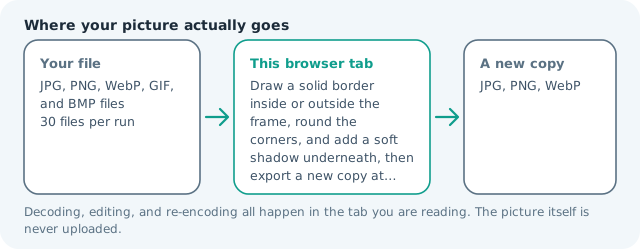
| Where the work happens | In this browser tab — the picture itself is never uploaded |
| Largest file | 100 MB, 40 megapixels or fewer |
| Largest batch | 30 files per run |
| Account, price, watermark | No sign-up, no charge, nothing stamped on your export |
When this helps
- A product shot that needs a white margin to sit evenly in a marketplace grid
- A quote card or cover image that wants a coloured rule instead of a hard edge
- Print and framing work where the paper colour has to be part of the file
- Screenshots that lose text at the edge when a site crops them
The arithmetic is worth stating plainly: a 1,200 × 800 picture with a 40 px border outside comes back 1,280 × 880, because the frame is new canvas rather than a squeeze of what you had. Choosing the inside option keeps 1,200 × 800 and covers 40 px of the artwork instead.
Detailed guidance
What a border actually adds
There are two different jobs hiding behind the word. The first grows the canvas: your picture keeps every pixel it had and gains a band of flat colour around it, so a 40 px frame on a 1,200 × 800 file produces 1,280 × 880. The second keeps the canvas exactly as it is and paints the frame over the edge of the picture, which is what you want when a form, a template, or a print size refuses anything but the dimensions you started with. The first costs you space, the second costs you image. Choosing between them is the whole decision, and it is why the page asks before it draws.
Why the frame is drawn at full resolution
Most quick border tools work by scaling your picture down inside a larger box, which is fast and quietly ruinous: the artwork loses detail it never needed to lose, and text in a screenshot goes soft at exactly the size where you were hoping to read it. Here the picture is painted into the new canvas at its own pixel size and the frame is filled around it, so the only thing that changes is the area of the file. That also means a border costs nothing in quality when you re-encode it as a JPG at a sensible quality — you are paying for the new flat colour, not for a resample.
White frames, colour frames, and the flat rule
A white margin is the convention for product catalogues and prints because it separates the subject from whatever surface the page happens to be. A coloured frame reads as a design decision and needs to be chosen against the page it will sit on rather than against the picture, since a frame that matches the photo exactly disappears and a frame that fights it becomes the first thing anyone sees. Black borders on photographs are the classic accident: they look confident on a white editing screen and heavy everywhere else. If you are unsure, put the framed file on the background it is actually going to live on before you commit.
When the receiving system decides for you
Printers, framing services, and several marketplaces specify margins in millimetres or as a percentage of the short edge. Convert before you type: a 300 dpi print wants roughly 12 px per millimetre, so a 5 mm margin is a 60 px border. Doing the arithmetic in the other direction — adding a border and hoping the print shop is relaxed about it — is how people end up with a frame that is technically present and visually wrong.
Where this stops being the right tool
A border is a rectangle. If what you want is a bevel, a textured mount, or a frame with perspective, that is a compositor job and a flat canvas will only embarrass you. Rounded corners and drop shadows live on their own pages here, because they change what the file looks like at the corners rather than adding a band of colour, and a shadow needs air around the picture that a border does not.
Add a Border to an Image questions
How do I add a border to an image without changing its size?
Choose the inside option. The frame is then drawn over the edge of the picture, so the outer dimensions stay exactly what they were and the border eats into the artwork instead of growing the file. Outside is the better default when the picture has spare room at its edges; inside is the answer when a form will reject anything but the original dimensions.
What border width looks deliberate?
Somewhere near 2 to 5 percent of the shorter edge. On a 1,200 × 800 photo that is 16 to 40 px. Below that it reads as an accident or a compression artefact; far above it, the frame becomes the subject. If the border has to match a layout rather than an eye, use the pixel width the layout asks for and stop guessing.
Can I put the same border on many photos at once?
Yes. The queue takes up to thirty files per run and applies the identical width, colour, and placement to each one. The width is measured in pixels rather than as a share of the frame, which is what you want for a consistent set and what you do not want for a mixed bag of sizes.
Is my picture uploaded to add the border?
No. The frame is drawn on a canvas in this tab and the result is encoded here. Nothing is sent to a server, and the file on your disk is never modified — you get a new copy with the border on it.