
Local browser tool · Join
Join Images Side by Side
To join images side by side, add them here and switch the layout to horizontal: each picture is scaled to a shared height, arranged left to right in the order of the cards, and exported as a single file with an even gap you control. Comparisons read correctly on a horizontal travel — before and after, damaged and repaired, old and new — which is why this layout answers more real requests than a vertical stack does.
Line pictures up left to right
A horizontal merge that scales every panel to a common height with an even gutter. Suitable for join tasks on JPG, PNG, and WebP files; the export is always a new copy.
Click a thumbnail to preview it before you start.
These are the settings you last used for this tool. They stay in this browser and are never sent anywhere.
Your files are read locally. Nothing is uploaded.
Your results
Pick a picture in the list to look at that file instead.
Full size
Actual pixels, straight from this browser — scroll to check edges and fine detail, then close.
Free to use. Local limits: up to 30 files, 100 MB per file, and 250 MB per batch, processed entirely in this browser. Nothing is uploaded; what stays on your device afterwards is the settings you last used and, after a run, the picture this page made so a next step can open it without choosing the file again. Start over deletes that picture.
Join at a glance
| Files it opens | JPG, PNG, WebP, GIF, BMP |
|---|---|
| Files you get back | JPG, PNG, WebP |
| Camera data (EXIF) | Not copied — this browser writes a fresh picture from its pixels, so GPS, timestamps and camera tags stay in the file you started with |
| This page is already set to | JPG output |
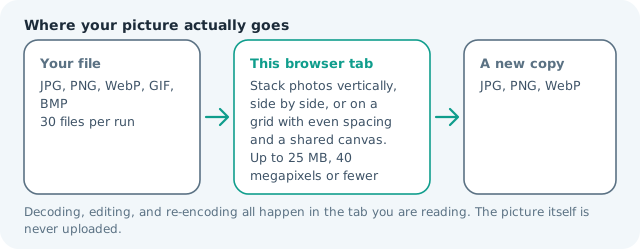
| Where the work happens | In this browser tab — the picture itself is never uploaded |
| Largest file | 100 MB, 40 megapixels or fewer |
| Largest batch | 30 files per run |
| Account, price, watermark | No sign-up, no charge, nothing stamped on your export |
When this helps
- Before-and-after photographs for a listing or portfolio
- Repair, cleaning, and renovation evidence pairs
- Product variants shown together in one attachment
- Two screenshots presented as a single argument
Measured on this page: two 640 × 640 frames set side by side came out as a single 1,300 × 640 JPG of 25 KB, with the gap and its background counted inside that width rather than added as padding afterwards.
Detailed guidance
What a horizontal join communicates
An eye travelling left to right compares; an eye travelling top to bottom reads a sequence. That distinction is the whole reason before-and-after photography belongs in a horizontal layout, and why an invoice chain belongs vertically. Once you see it, the layout choice stops being aesthetic. The same logic explains why pairing works in a listing: two photographs of the same object, placed side by side at matched heights, invite a judgement about difference, while the same pair stacked asks to be read in order. Choose the direction your viewer's attention should travel, then let the tool handle alignment.
Making the seam disappear
Mismatched heights are the usual flaw, and shared-edge scaling removes them automatically. The remaining problems are human: a colour cast that differs between the two shots reads as a seam even at a perfect join, and a crop that cuts a subject in one panel but not the other looks careless. Shoot or crop both frames at the same framing distance, match exposure roughly before merging, and set the gap to zero only when the two images are genuinely meant to continue into each other.
Order, naming, and re-exporting
The card order is the final left-to-right order, so reorder before exporting rather than starting again afterwards. Name the composite for its purpose the moment it lands, because a download folder holding four files called joined-imgmunch.jpg is unresolvable next week. Keep the sources: a comparison you export today may need a third panel in a month, and merging from originals always beats rebuilding from a flattened pair.
Keeping a merged comparison legible
A side-by-side is twice as wide as its panels, so it renders small on a phone. Test by shrinking the preview to a third of its width: if the difference you wanted to show is not obvious there, it will not be obvious in a chat either. Crop tighter, raise the contrast between panels, or send two images instead of one. If the merged file also needs to clear an attachment cap, run the composite through the compressor once at the end rather than compressing the panels first.
Mixing sizes, ratios, and resolutions in one row
Real comparison sets are never consistent: one panel is a portrait crop, the next a wide panorama, the third a screenshot. A horizontal join normalises heights rather than widths, so mismatched shapes produce uneven panels and a visible step at the seam. Crop every panel to the same ratio first and run the set again; the composite looks intentional instead of accidental. Watch total width too — thirty phone photos in one row makes a file that readers must pan on a phone, and a set that wide usually wants two rows. Export as PNG when any panel carries text, so glyph edges survive untouched.
Join Images Side by Side questions
How do I put two images side by side?
Add both files, set the layout to side by side, and run the merge. The tool matches their heights, keeps the card order as the left-to-right order, and exports one composite you can download immediately.
What if my photos are different shapes?
Mixed ratios are fine. Every panel is scaled to the same height, and the gap plus background absorb whatever the shapes leave uneven. If one panel looks trimmed, switch that card to fit so its whole picture shows.
Can I control the white line between them?
Yes. The gap slider sets the gutter and the colour picker sets the background, so a 12-16 px white separator reads as intentional and a 0 px gap makes a seamless panorama-style join.
Is there a limit on panels?
Up to thirty files work, though beyond four or five side by side each panel becomes narrow and detail is lost on a phone. Add a second row by switching to grid when the set grows.