
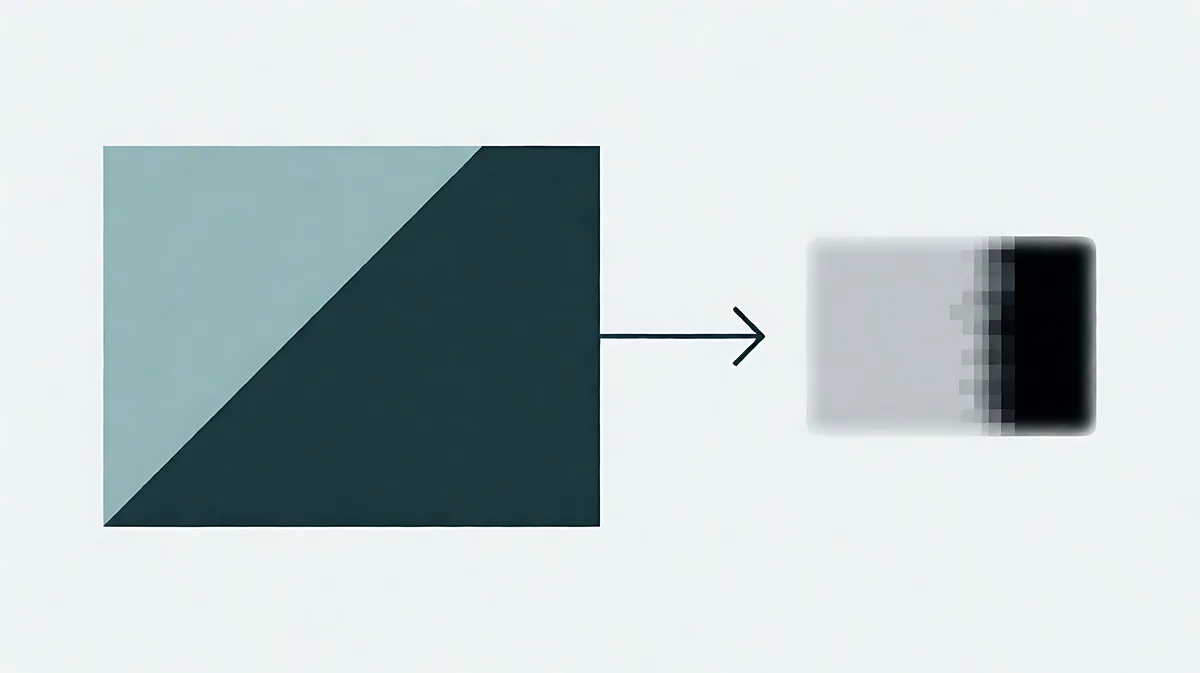
First tell the two losses apart
Downscaling removes pixels, so the whole image gets uniformly softer — edges, texture, and small text all lose definition at once. Re-encoding keeps the pixel dimensions and throws away colour detail, so you get softness in flat areas plus visible ringing or blocky squares around high-contrast edges such as lettering, a fence, or a horizon. Look at a small piece of text in the result. If the text is simply less crisp, you were resized. If it is crisp but surrounded by muddy squares, you were recompressed.
The receiving site did it, not your phone
Social platforms, forms, and content management systems all re-encode what you upload, and they do it with a fixed budget they choose rather than one you set. Two of them can treat the same file differently: one may accept it as delivered, the other may resize it to a maximum edge length and then encode it again. Because each save discards information, an image that has already been through two uploads degrades faster than a fresh one — the second platform is compressing an already lossy copy.
Give the platform less work to do
Re-encoding is cheapest to survive when the file that arrives is already close to what the platform wants. Resize to the largest edge the destination actually displays rather than the camera default; a 4000-pixel-wide original shown in a 1200-pixel slot loses the same detail twice, and the second loss is the version nobody controls. Then compress with your own setting so the platform's automatic pass has little left to remove.
Check the result before you delete anything
Work on a copy. The tools on this site read the file in your browser and hand back a new one, so the original stays where it is, and the result card reports the pixel dimensions and byte size of the copy before you download it. Open the downloaded file and inspect the areas that give compression away: skin tones, foliage, text on a coloured background, and the corners of a cropped frame. If the copy is worse than you accept, raise the quality one step, or resize less and compress less rather than doing one extreme.
Quick checklist
- Soft everywhere means resized; blocky around edges means recompressed.
- Resize to the size the destination actually displays, before uploading.
- Compress with your own setting so the platform has less to remove.
- Judge the downloaded copy at full size, and keep the original untouched.
Try the related tool
Use the guide’s decision with a copy of your own image. The tool runs in this browser and leaves the original file unchanged.
Compress Image