
Local browser tool · Crop
Crop an Image for an Instagram Story
To crop an image for an Instagram story, select the 9:16 preset and drag the frame over the part of the photo worth showing vertically: the crop discards everything outside it and keeps native pixels inside, so the app never re-crops your choice. Instagram renders stories at 1080 × 1920, so start from a photo at least that tall — a smaller source exports smaller rather than gaining invented detail.
Cut a photo to the 9:16 story frame
A vertical crop at native resolution, sized for a full-screen phone story. Suitable for crop tasks on JPG, PNG, and WebP files; the export is always a new copy.
Click a thumbnail to preview it before you start.
These are the settings you last used for this tool. They stay in this browser and are never sent anywhere.
Drag the frame to choose the crop, pull its corner to size it, and the numbers below follow. The frame is the part you keep.
Estimated output —
Your files are read locally. Nothing is uploaded.
Your results
Pick a picture in the list to look at that file instead.
Full size
Actual pixels, straight from this browser — scroll to check edges and fine detail, then close.
Free to use. Local limits: up to 30 files, 100 MB per file, and 250 MB per batch, processed entirely in this browser. Nothing is uploaded; what stays on your device afterwards is the settings you last used and, after a run, the picture this page made so a next step can open it without choosing the file again. Start over deletes that picture.
Crop at a glance
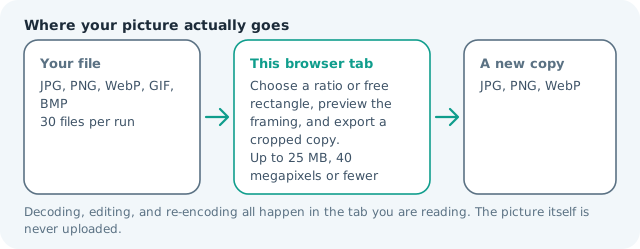
| Files it opens | JPG, PNG, WebP, GIF, BMP |
|---|---|
| Files you get back | JPG, PNG, WebP |
| Camera data (EXIF) | Not copied — this browser writes a fresh picture from its pixels, so GPS, timestamps and camera tags stay in the file you started with |
| This page is already set to | JPG output |
| Where the work happens | In this browser tab — the picture itself is never uploaded |
| Largest file | 100 MB, 40 megapixels or fewer |
| Largest batch | 30 files per run |
| Account, price, watermark | No sign-up, no charge, nothing stamped on your export |
When this helps
- Turning a landscape shot into a full-screen story
- Product photos recomposed for a vertical swipe
- Event photography prepared for a story sequence
- Repostable quote cards cut from a larger artwork
Measured on this page: a 1,200 × 900 photo cropped to 9:16 came out 506 × 900. Instagram lays a story out at 1,080 × 1,920, so a landscape original ends up displayed enlarged and soft; start from a portrait you actually shot that way.
Detailed guidance
Why stories punish a lazy crop
A story is the largest a photograph is ever shown on a phone, which makes it the least forgiving surface on the app. Auto-framing centres on the whole image, so a landscape cropped for a story loses its subject to the top or bottom of the frame more often than not. Choose the crop yourself: pick the vertical band that carries the action, confirm nothing important is halved at either edge, and export at native resolution so the render stays crisp on a high-density screen. If a shot genuinely cannot survive becoming vertical, it is the wrong shot for a story rather than a problem this tool can solve — full-screen layouts reward compositions built for them.
Planning for the interface bands
Every story is overlaid with the same furniture: your avatar and name at the top, the reply and camera-roll controls at the bottom. Those bands are roughly 250 px and 320 px of a 1,920 px canvas, and they cover whatever you place there. Keep faces and captions inside the central band. When you crop, judge the framing twice — once for the picture and once for the safe area — because the second judgement is the one viewers actually experience.
Sequences and visual consistency
Stories are consumed as runs, so a sequence where every frame has the same crop logic reads as designed. Fix the ratio at 9:16 for the whole batch, crop consistently around the subject, and export all frames in one pass so weights and dimensions match. Mixed ratios trigger the app's padding, which introduces colour differences between frames that no viewer attributes to taste.
Export checks worth thirty seconds
Confirm the reported dimensions, then view the file full screen on your own phone before adding captions, because a desktop preview hides softness and stray detail at the cut edges. If the story also needs a square or 4:5 feed version, produce it from the original rather than from the story crop — the two frames want different compositions, and working from the master keeps both sharp. Nothing uploads at any point, so unreleased campaign imagery stays where you put it.
Reusing one vertical frame across formats
A 1080 × 1920 story becomes a reel cover, a highlight cover, and sometimes a feed post, and each surface crops it again. Work from the vertical export rather than re-cutting the original every time: a highlight cover takes a tight centre square, a reel cover keeps the middle band, and a feed version wants 4:5 from the same area. Choosing the crop deliberately here means the subject already sits where all three extractions survive. Reels overlay their own caption low in the frame, so check the result on a phone held at a normal distance before committing to the sequence.
Crop an Image for an Instagram Story questions
What size is an Instagram story?
1080 × 1920 px at 9:16. Cropping to that ratio here means the app displays your image edge to edge instead of adding its own background padding or cutting a different region.
How much of a landscape photo do I lose?
Roughly two thirds of the width, since 3:2 to 9:16 is a severe change of shape. That is usually too much, so either pick a shot with a single subject you can centre, or keep the whole scene and pad it to the frame on the resizer instead of cropping it away.
Where should text stay clear of?
About 250 px from the top and 320 px from the bottom, where the app draws your avatar, the reply field, and the swipe-up area. Place captions in the middle band or they will be covered at the exact moment someone opens the story.
Does cropping reduce quality?
No pixels inside the frame are degraded — everything outside it is simply discarded. Quality only changes at export, so choose JPG for photographs and keep the quality setting reasonably high for a full-screen surface.