
Local browser tool · Contrast Checker
Image Color Contrast Checker
Readability has a number, and it is not a matter of taste. This color contrast checker measures an image of your own text against its background using the WCAG 2.2 formula, then marks the four official thresholds — AA and AAA, normal text and large text — as pass or fail. Add a picture and take both colours straight from it, so you are testing the pair that is actually in your file rather than two hex codes you hoped were close.
Measure whether two colours can be read
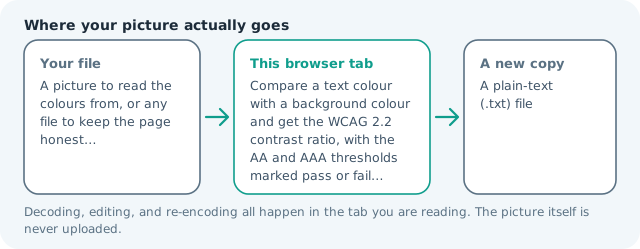
Compute the WCAG 2.2 contrast ratio for a text colour against a background colour and see which thresholds it clears. Suitable for contrast checker tasks on A picture to read the colours from, or any file to keep the page honest files; the export is always a new copy.
Click a thumbnail to preview it before you start.
These are the settings you last used for this tool. They stay in this browser and are never sent anywhere.
The report runs the WCAG 2.2 relative luminance formula over the two boxes above, so it answers the question that actually matters — can this text be read on that background — without depending on how large the letters are in the file you added.
Output formatPlain text (.txt)
Your files are read locally. Nothing is uploaded.
Your results
Pick a picture in the list to look at that file instead.
Full size
Actual pixels, straight from this browser — scroll to check edges and fine detail, then close.
Free to use. Local limits: up to 30 files, 100 MB per file, and 250 MB per batch, processed entirely in this browser. Nothing is uploaded; what stays on your device afterwards is the settings you last used and, after a run, the picture this page made so a next step can open it without choosing the file again. Start over deletes that picture.
Contrast Checker at a glance
| Files it opens | A picture to read the colours from, or any file to keep the page honest |
|---|---|
| Files you get back | A plain-text (.txt) file |
| Where the work happens | In this browser tab — the picture itself is never uploaded |
| Largest file | 100 MB, 40 megapixels or fewer |
| Largest batch | 30 files per run |
| Account, price, watermark | No sign-up, no charge, nothing stamped on your export |
When this helps
- Checking a caption colour against the panel it sits on before a page ships
- Settling a review comment that a button is hard to read, with a number instead of an opinion
- Testing the two extremes actually present in a photo you plan to put text over
- Choosing between two greys that look equally fine on your monitor and are not equal
Two anchors worth memorising: black on white is 21:1, and the grey #767676 on white lands at about 4.5:1, which is why it is the usual shorthand for the lightest grey that still passes AA for body text. Anything paler than that fails at reading size while looking perfectly clear on a bright monitor.
Detailed guidance
Where the number comes from
Contrast is a ratio between two relative luminances, and luminance is not brightness. Each colour has its red, green, and blue channels linearised out of sRGB and then weighted by how much each one contributes to what a human eye registers: green dominates, red contributes a good deal less, and blue barely registers at all. That is why a saturated blue on white looks vivid and cheerful while scoring a low ratio, and why two colours of identical apparent lightness can differ by a full point. The formula is fixed, which is the useful part: the same pair gives the same number on every audit tool, and an argument about readability can become an arithmetic result.
The four thresholds and the size rule
AA asks 4.5:1 of body text and 3:1 of large text, where large means 24 px, or 19 px bold. AAA asks 7:1 and 4.5:1. The size exemption exists because bigger letterforms have more internal detail to survive a weak pairing, so the same colours can be acceptable for a headline and inadequate for a paragraph. This is the check people most often get wrong: they test the pair once, see that it passes, and then reuse it at 14 px.
Sampling from a photograph
The sample button reads the extremes that are actually present in your file rather than the average you would eyeball. That is deliberately the easiest case: a photo with a bright sky and a dark shadow gives a high ratio, and the mid-tone wall behind your caption is a different, worse number. Treat the sampled pair as a starting point and then set the two boxes to the colours your text really touches.
What a passing number still cannot tell you
Contrast is one property of two colours. It says nothing about font weight, x-height, letter spacing, line length, or the reading distance a phone forces on you. It does not model the way glare flattens a screen outdoors, or how low vision changes which ratios are usable. It also says nothing about the areas between the letters, which is where text over an image genuinely fails: a ratio can pass and the caption can still disappear into a busy pattern.
When to use a solid panel instead
If text has to sit on a photograph and the ratio keeps failing, the fix is not an ever-heavier colour. Put a solid or semi-opaque panel behind the text, then measure the text against that panel. You end up with a number that means something, and a picture that is not being used as a background for something it was never composed to support.
The report is written to a text file, so the pair and its number can be attached to a review instead of re-litigated from memory.
Image Color Contrast Checker questions
What contrast ratio counts as passing?
WCAG 2.2 sets AA at 4.5:1 for normal text and 3:1 for large text, where large means 24 px or 19 px bold. AAA raises those to 7:1 and 4.5:1. The report shows all four so you can see which line your pair clears rather than guessing which one your reviewer meant.
How do I test the colours in my own picture?
Add the file and press the sample button. The page reads the lightest and darkest opaque pixels in the image and puts them in the two boxes. That is the widest pair the picture contains, so any pair you then choose by hand is a harder case, not an easier one.
Can it check text placed over a photo?
Not directly, and a tool that claims to is guessing. A photograph has no single background colour, so there is no second input for the formula. What you can do honestly is sample the extremes, then put a solid panel or a scrim behind the text and test that panel instead.
Is the image uploaded to run this?
No. The pixels are read in this tab, the arithmetic happens here, and the report is written to a text file you can keep. The two colour boxes work even if you never add a picture at all.