
Local browser tool · Compress Images in Bulk
Compress Images in Bulk
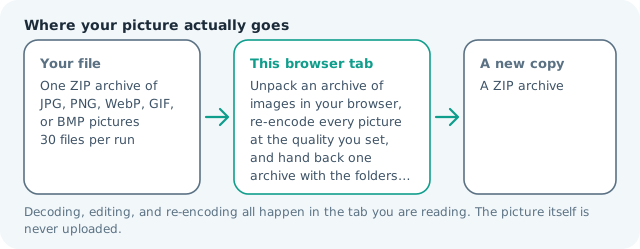
Compress images in bulk without uploading a single one: thirty files at a time is easy, but three hundred is where a per-file tool stops being one. Add a ZIP archive and this page unpacks it in your browser, re-encodes every JPG, PNG, WebP, GIF, and BMP image inside at the quality you set, and hands back one archive with the folders and file names kept, so the ceiling on your batch is your device rather than a connection.
One archive in, one smaller archive out
Unpack a ZIP of pictures, re-encode every file at one quality, and return a single archive with the structure intact. Suitable for compress images in bulk tasks on One ZIP archive of JPG, PNG, WebP, GIF, or BMP pictures files; the export is always a new copy.
Click a thumbnail to preview it before you start.
These are the settings you last used for this tool. They stay in this browser and are never sent anywhere.
Add a ZIP of pictures and the page unpacks it here, re-encodes every JPG, PNG, WebP, GIF, and BMP inside at the quality you set, and hands back one archive with the folders kept. Anything that would come out heavier than it went in is returned byte for byte instead of inflated, and the result card says how many were actually smaller.
Output formatZIP archive
Your files are read locally. Nothing is uploaded.
Your results
Pick a picture in the list to look at that file instead.
Full size
Actual pixels, straight from this browser — scroll to check edges and fine detail, then close.
Free to use. Local limits: up to 30 files, 100 MB per file, and 250 MB per batch, processed entirely in this browser. Nothing is uploaded; what stays on your device afterwards is the settings you last used and, after a run, the picture this page made so a next step can open it without choosing the file again. Start over deletes that picture.
Compress Images in Bulk at a glance
| Files it opens | One ZIP archive of JPG, PNG, WebP, GIF, or BMP pictures |
|---|---|
| Files you get back | A ZIP archive |
| Camera data (EXIF) | Not copied — this browser writes a fresh picture from its pixels, so GPS, timestamps and camera tags stay in the file you started with |
| Where the work happens | In this browser tab — the picture itself is never uploaded |
| Largest file | 100 MB, 40 megapixels or fewer |
| Largest batch | 30 files per run |
| Account, price, watermark | No sign-up, no charge, nothing stamped on your export |
When this helps
- A shoot export that has to fit inside an email or a listing form limit
- A product catalogue folder being loaded into a CMS with a per-file cap
- A downloaded image archive being prepared before it is committed
- A batch of screenshots where the useful ones are already tight
The result card counts what actually happened rather than guessing: how many pictures came out smaller, how many were returned unchanged because a re-encode would have made them heavier, and how many could not be read. A mixed archive is normal, and a screenshots folder is the usual case where some files come back exactly as they went in.
Detailed guidance
Where a per-file tool stops working
Adding thirty files to a queue is manageable. Adding three hundred is not, because the tab holding them has to remember every one, and because you will be pressing the same button three hundred times. Working from an archive moves the whole job into one action: the file goes in, a smaller file comes out, and the folder structure inside is untouched, so whatever your build process expects to find is still where it was.
Why some pictures refuse to shrink
Re-encoding is not a one-way ratchet. A JPG already saved at a sensible quality has very little left to give, and forcing it through a second lossy pass can produce a file that is the same size or larger while the image is worse. Line art, screenshots, and small PNGs behave the same way for different reasons: their data is already efficient and a general-purpose encoder has nothing left to discover. This page compares the two sizes and keeps the smaller one, so an archive can only get lighter or stay as it was.
What one quality setting means across a mixed folder
A single number is applied to every picture, which is the honest trade for doing the whole archive in one press. On photographs it behaves as expected. On a folder that mixes photographs with screenshots and icons, the flat graphics are the files most likely to come back unchanged, and the result card tells you how many did. If one file genuinely has to hit a byte target, that file wants the single-image compressor, where the encoder searches for the setting that lands under the limit.
How big a batch your device can take
The limits are the same as everywhere else on this site: thirty pictures and 250 MB of content per run, with no single file above 100 MB. Because nothing is uploaded, those numbers describe memory rather than patience — a fast machine on a slow connection is not the bottleneck it would be on an upload-based tool, and a phone simply refuses an archive that is too large instead of failing halfway through.
What this page does not touch
Dimensions, filenames, folders, and the count of files. Anything that could not be decoded is named in the result rather than silently dropped, and a corrupted archive is refused with an explanation instead of returning a partial set that looks complete. If you need sizes changed as well as bytes, resize the contents first and bring the folder back here.
Nothing is reordered or renamed inside the archive, so a build step that reads the folder afterwards still finds what it expects. Where a file did shrink, the extension follows the format you chose, which is the only visible change to a name.
Compress Images in Bulk questions
How do I compress a lot of images at once?
Put them in a ZIP and add the archive. The page unpacks it locally, re-encodes each picture at the quality you chose, and gives you one archive back. Up to thirty pictures and 250 MB of content fit in a single run, so a larger set is best split into two archives.
Why are some files the same size as before?
Because a re-encode would have made them heavier, and a tool that inflates your files has done you a disservice. Already-tight JPGs, small PNGs, and line art are the usual cases; they come back byte for byte and the result card counts them.
Can I set a target size per file?
Not in a batch. One number across thirty unrelated pictures gives thirty different outcomes, which is worse than useless when you are trying to fit a limit. Run the single-image compressor on the one file that has to hit a specific size.
Is the archive uploaded?
No. The ZIP is read in this browser, each picture is decoded and re-encoded here, and the new archive is written here. That is also why a slow connection never enters into how large a batch you can do.
What stays the same besides the file sizes?
Entry names and folder structure are preserved, so an archive that came in with subfolders goes out the same way. Picture dimensions are unchanged too — this page only changes how each file is encoded, never how big it is.